
Find your way around: sidebar and Settings
What every sidebar link is for (including beta PG / Hostel and Cameras) and what each card and section on the Settings page holds, and how to get back to Settings.
Steps checked on 12 October 2026
This guide explains every link in the sidebar and every card on the Settings page, so you know where to go for each job.
The sidebar
The sidebar is the list on the left of every screen. On a phone, open it with Menu in the bar at the bottom of the screen. If you cannot see the links at the bottom, scroll the list or tap the small arrow under it.
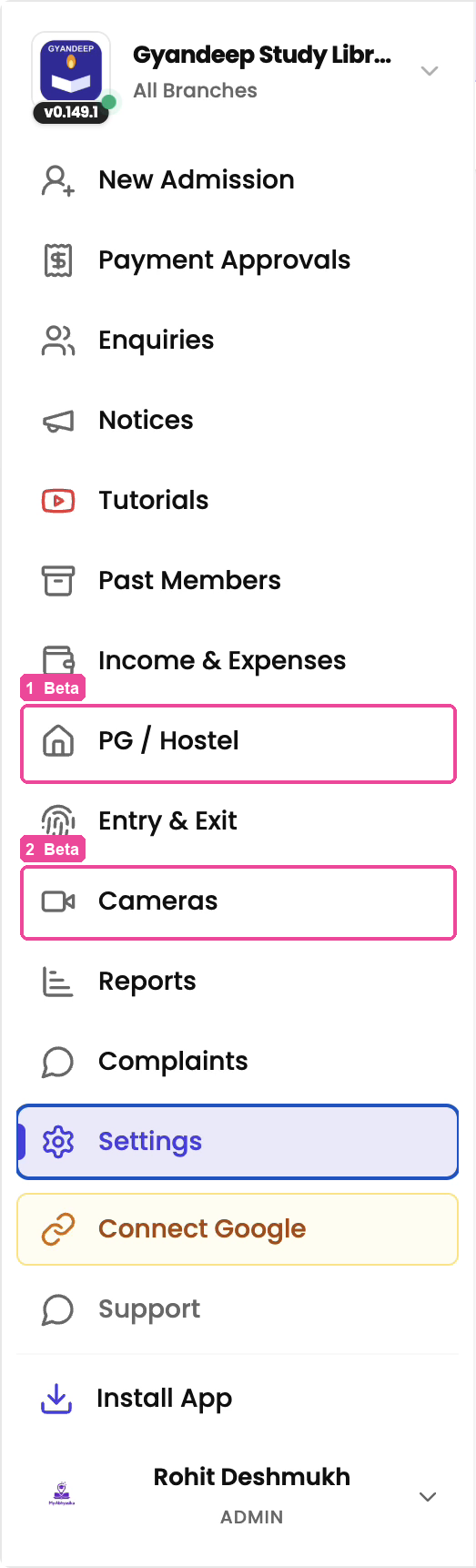
- Dashboard: today's picture of your library: members, money, seats. See Your dashboard, box by box.
- New Admission: add a new student. See Admit a new student.
- Payment Approvals: approve or reject the payment screenshots students send after paying online.
- Enquiries: students who asked about your library or signed up through your link. See Admit from enquiries.
- Renewals: students due to renew next month. This link only appears when Monthly Alerts is switched on.
- Notices: send one message to all your students, such as a holiday closure.
- Tutorials: short videos on how to use each feature.
- Past Members: students you removed. You can bring one back from here.
- Income & Expenses: your library's money in and out, and your profit.
- PG / Hostel: rooms, tenants and rent for a PG. This is in beta. To start using it, raise a support ticket (see Get help: chat with support).
- Entry & Exit: attendance from your fingerprint or card machine. See Connect your entry machine.
- Cameras: watch your CCTV cameras live. This is also in beta. Raise a support ticket to start.
- Reports: detailed numbers for the month, which you can download.
- Complaints: complaints your students send you. Read and reply to them here.
- Settings: everything you set up, and everything you want to change later. See the next section.
- Connect Google: link your Google account so you can sign in with Google. It disappears once linked.
- Support: chat with our help assistant or report a problem. See Get help: chat with support.
- Install App: add the Abhyasika admin app to your phone's home screen for faster access. Tap it to see if the app is already on your phone: it says Installed on this device or Not installed yet. When your browser cannot tell, it shows the steps to install from the browser's menu. You will not see this link inside the installed app.
Your sub-admins see fewer links. They do not see Settings, Income & Expenses, Reports, PG / Hostel or Past Members. See Add a sub-admin.
The Settings page
In the sidebar, tap Settings. The page opens with a set of cards. Tap a card to open that part.
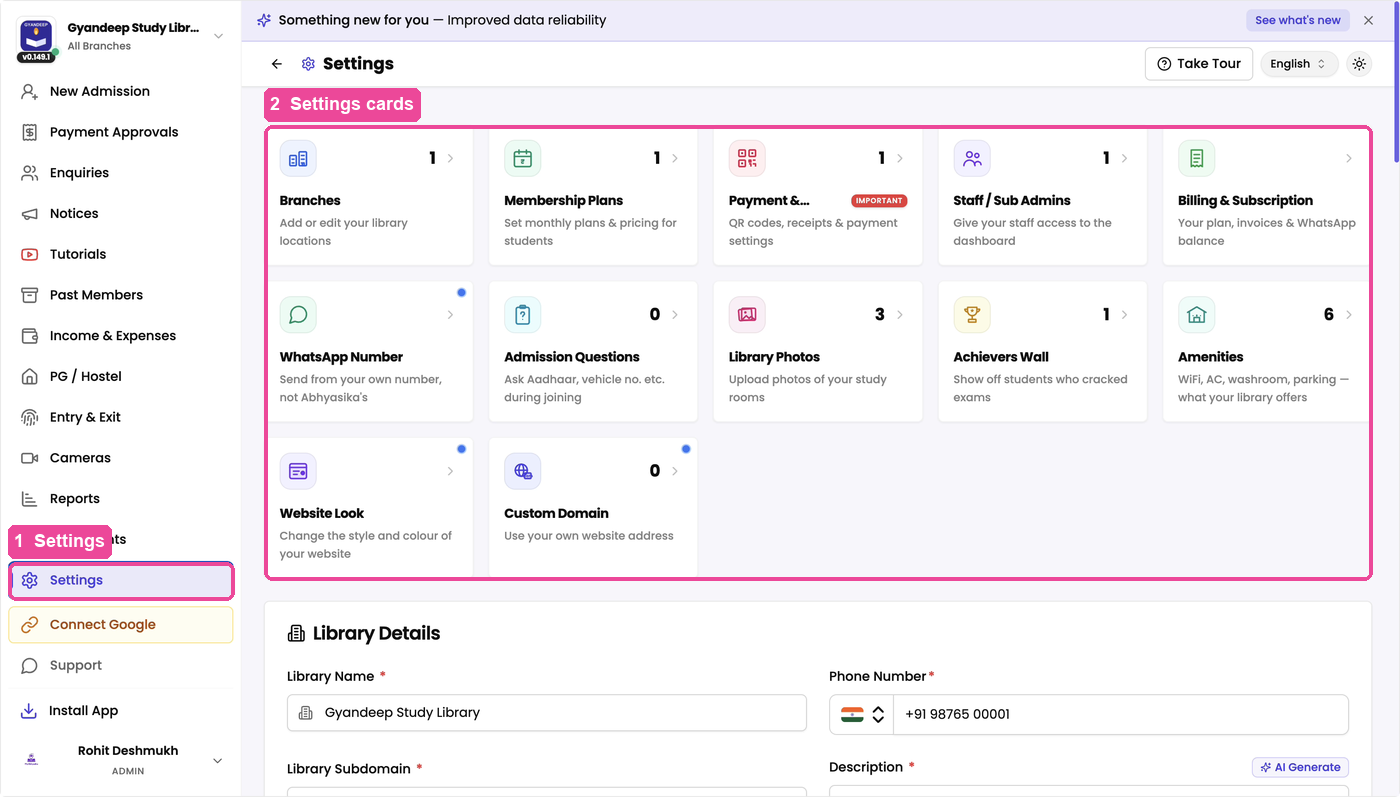
- Branches: your locations, the rooms in each, and each room's seat layout. See Set up seats and plans and Design your floor map.
- Membership Plans: your plans and prices, and your shifts (Manage Shifts).
- Payment & Receipts: two tabs. Receipt controls how your receipt looks and what prints on it. Getting paid holds your payment QR codes and the WhatsApp reminders that go out by themselves.
- Staff / Sub Admins: add helpers, see what each one collected. See Add a sub-admin.
- Billing & Subscription: your plan with Abhyasika, invoices, and your WhatsApp balance (WhatsApp Billing tab). When the balance runs out, messages stop, so recharge from Recharge Packs.
- WhatsApp Number: send messages from your own WhatsApp number instead of Abhyasika's.
- Admission Questions: extra questions asked at admission, such as Aadhaar or vehicle number.
- Library Photos: photos of your study rooms for your website.
- Achievers Wall: students who cleared exams, shown on your website.
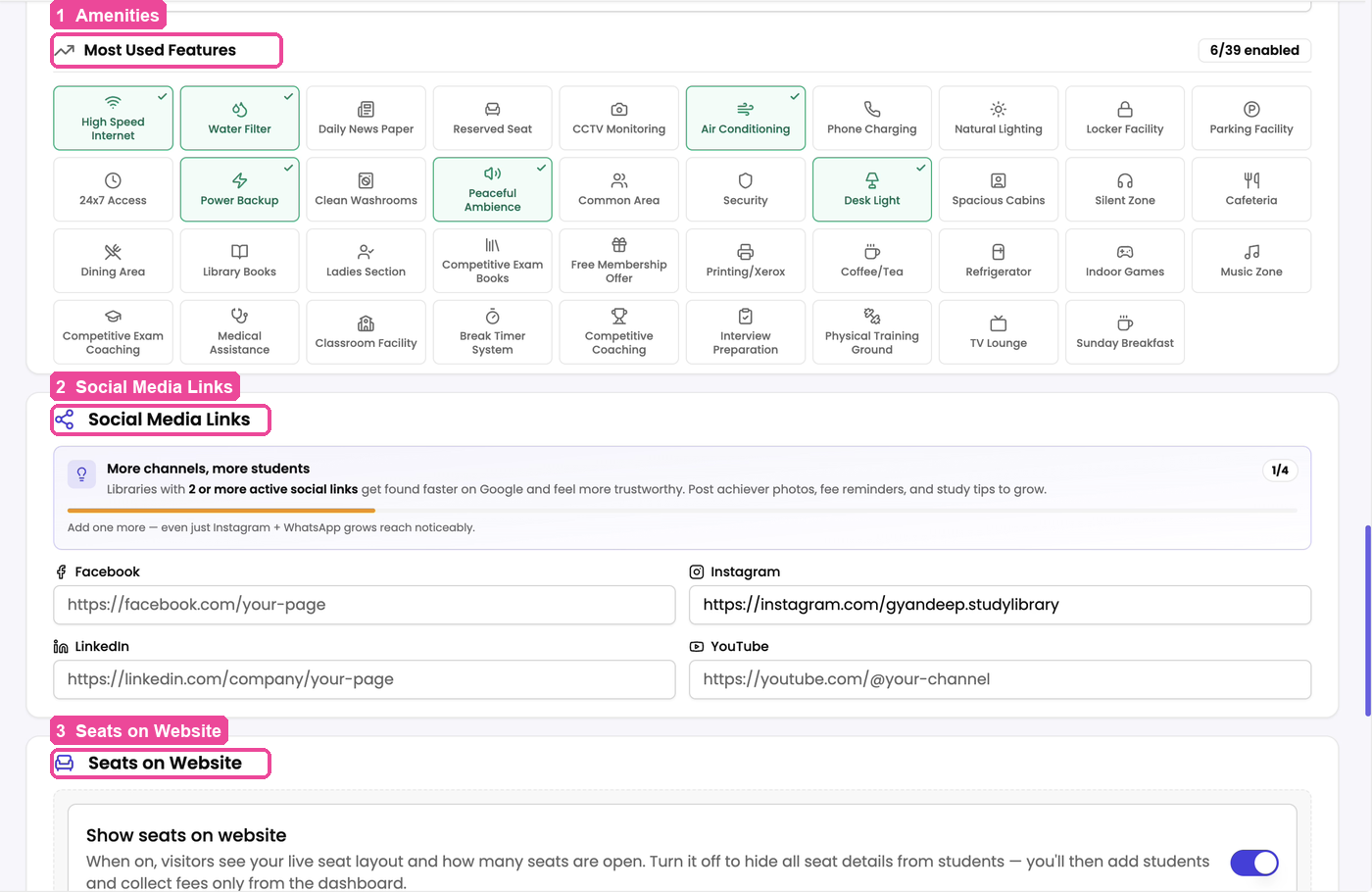
- Amenities: WiFi, AC, washroom and so on. This card scrolls down to the Most Used Features section on the same page; tick what your library offers.
- Website Look: the style and colour of your website.
- Custom Domain: your website address, or your own domain if you have one.
For the photos, achievers, look and domain cards, see Your library's own website.
Further down the Settings page
Scroll below the cards for these sections. They save on their own as you change them.
- Library Details: your library's name, phone number, web address (Library Subdomain), description, favicon and website banner.
- Branch locations & review links: each branch's location and Google review link.
- One-time Fees: fees collected once at joining, such as a locker fee or security deposit.
- Things you hand out: locker keys, ID cards and other items you give students and take back.
- Most Used Features: your amenities.
- Social Media Links: your Facebook, Instagram, LinkedIn and YouTube pages.
- Seats on Website: show or hide your seats on your website.
- Member Identity Document: whether to ask for an identity document at admission: Don't ask, Ask, but allow skipping, or Must have it to add a member.
- Student Testimonials: what students say about your library.
Getting back to Settings
Each card opens its own page. When you finish there, tap Settings in the sidebar again to come back to the cards, or tap the back arrow next to the page title.