
Admit a student from Enquiries
Turn a student who registered through your link or asked for a seat on your website into a member from Enquiries, without typing their details again.
Steps checked on 29 September 2026
This guide turns a student who registered through your link or asked for a seat on your website into a member, without typing their details again.
Before you start
- The student must be in your Enquiries. A student lands there when they register through your link or QR code, or book a seat or join the waiting list on your website. See Share your library link with students.
- You need at least one room and one plan. See Set up branches, rooms, seats and plans.
Find the student
-
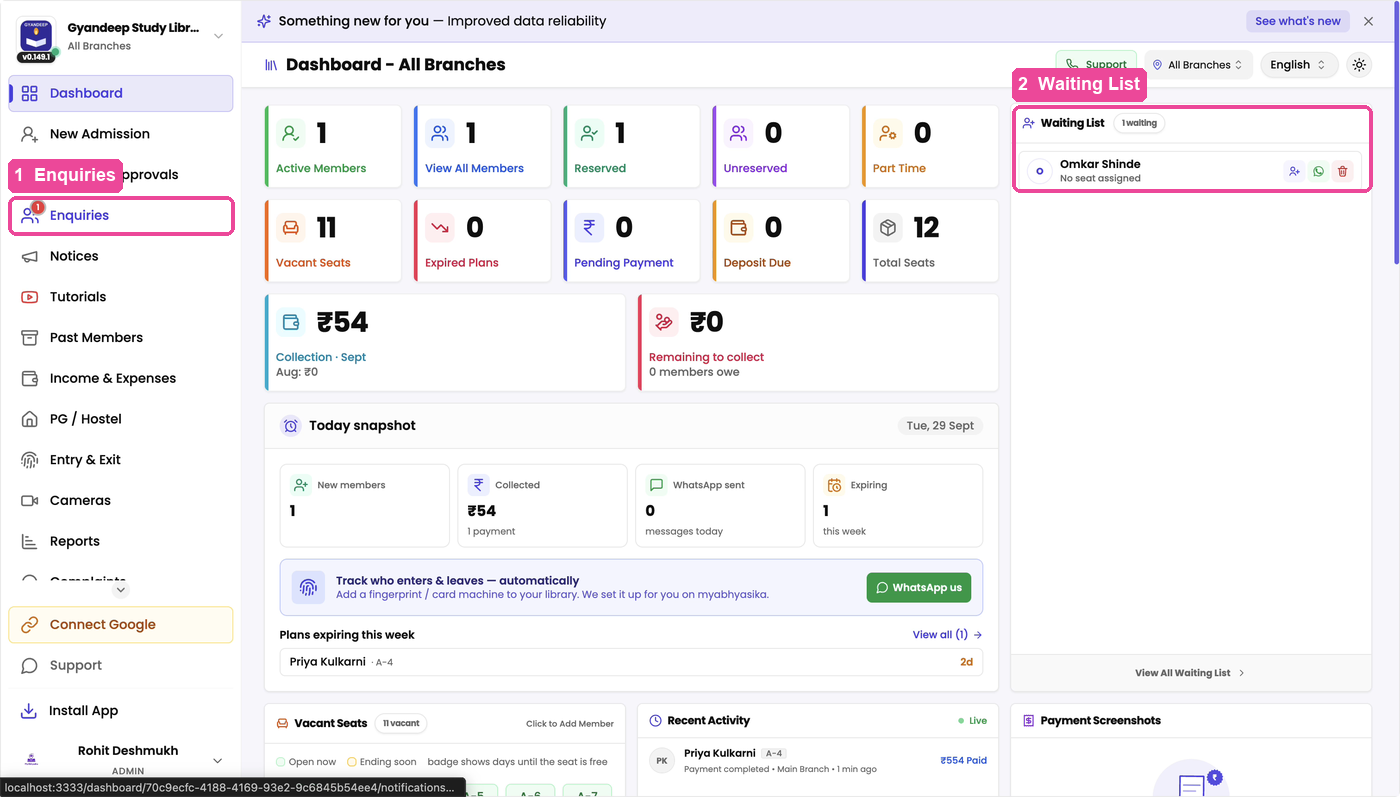
Look at the sidebar. When someone new is waiting, Enquiries shows a red number. The same student is also listed in the Waiting List card on the Dashboard.
-
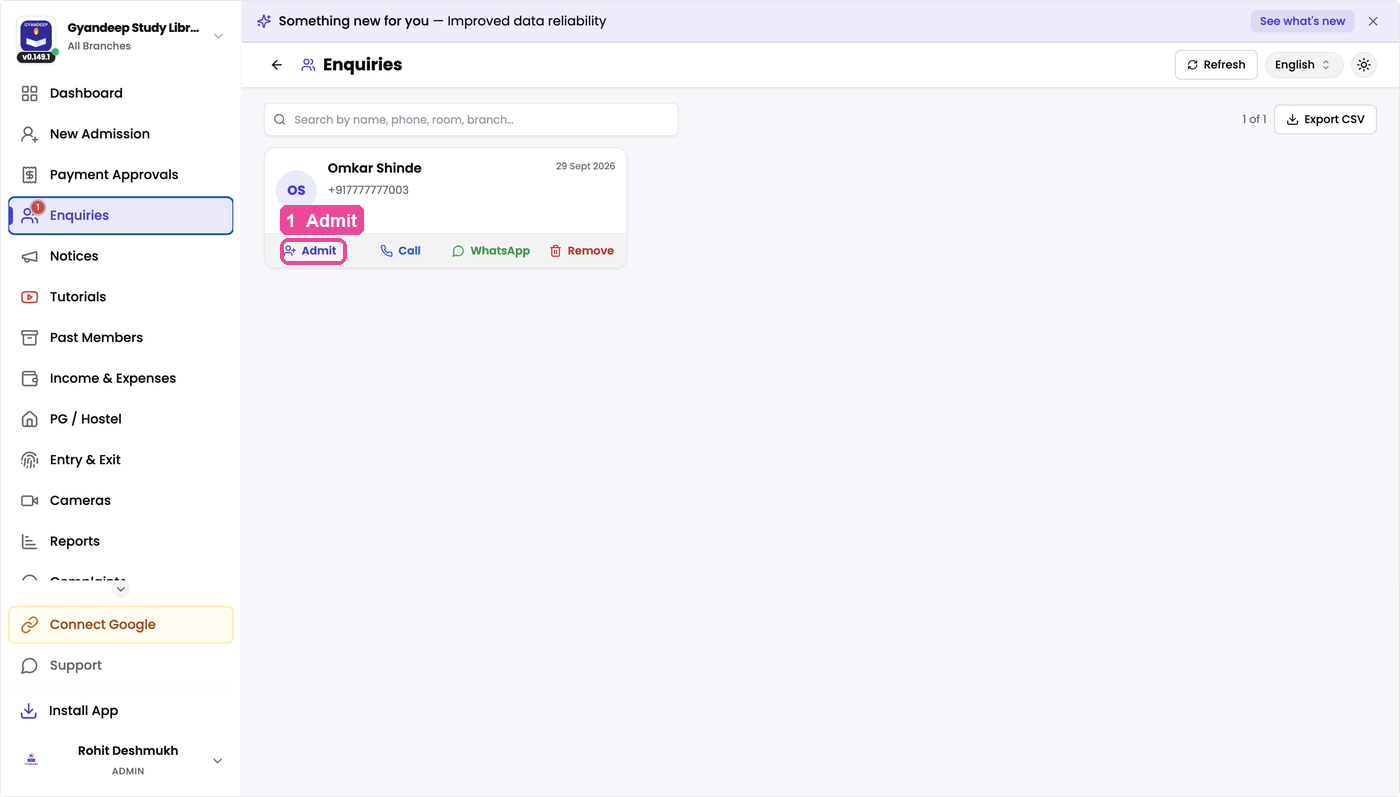
In the sidebar, tap Enquiries. On a phone, tap Enquiries in the bottom bar. Each student has a card with their name, WhatsApp number and the exam they are preparing for.
-
Many students? Type a name or phone number in Search by name, phone, room, branch….
Admit the student
-
On the student's card, tap Admit. (The other buttons: Call rings them, WhatsApp opens a chat with them, and Remove takes them off the list.)
-
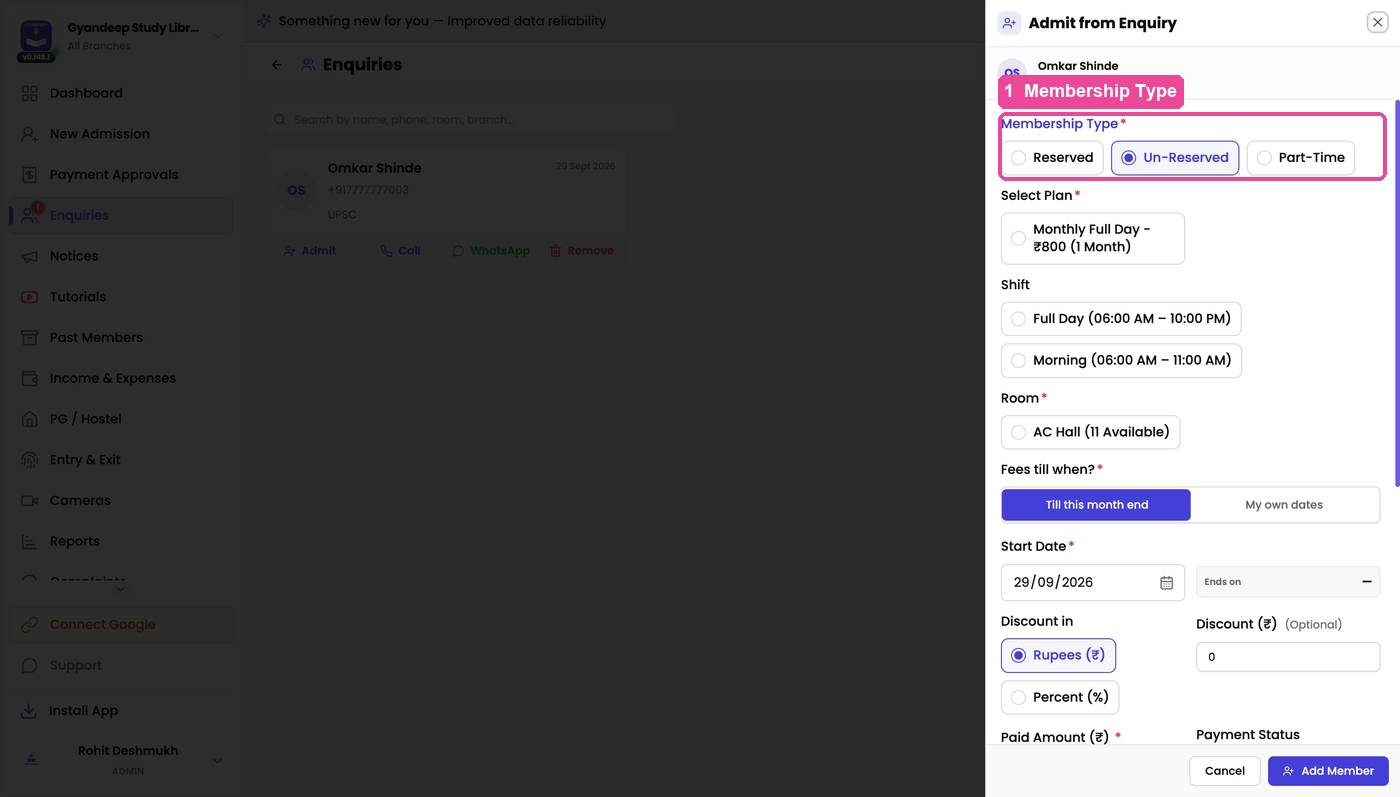
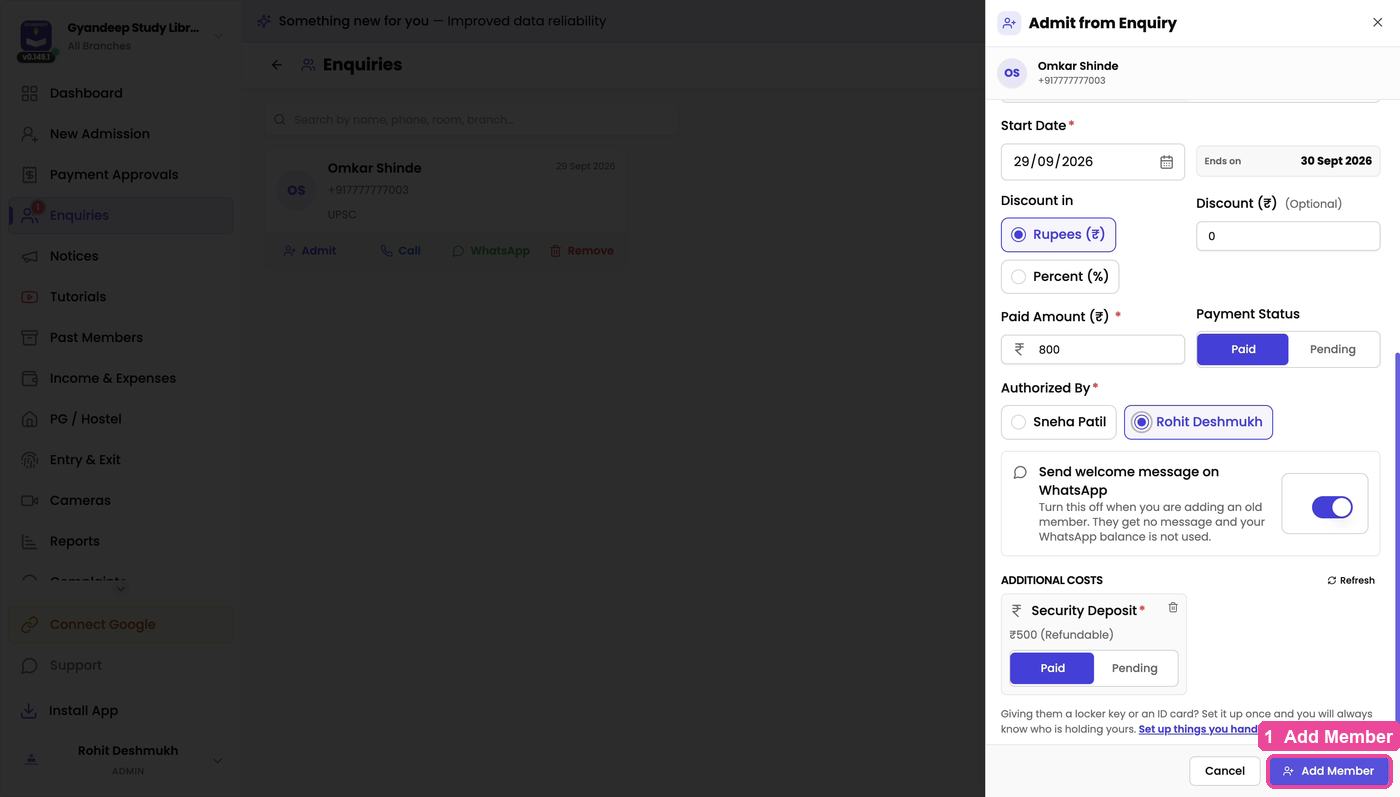
A panel titled Admit from Enquiry opens, with the student's name and number already at the top.
-
Check the Membership Type: Reserved, Un-Reserved or Part-Time. It is already set to Un-Reserved, so no seat is asked for. If the student booked a particular seat on your website, it is set to Reserved instead.
-
Under Select Plan, tap the plan.
-
Under Shift, pick the shift if your library has shifts.
-
Under Room, pick the room. For a Reserved student, also pick the Seat.
-
Under Fees till when?, keep Till this month end, or pick My own dates to choose the end date yourself. It works the same way as on New Admission. See Admit a new student.
-
Giving a discount? Pick Discount in and enter the discount.
-
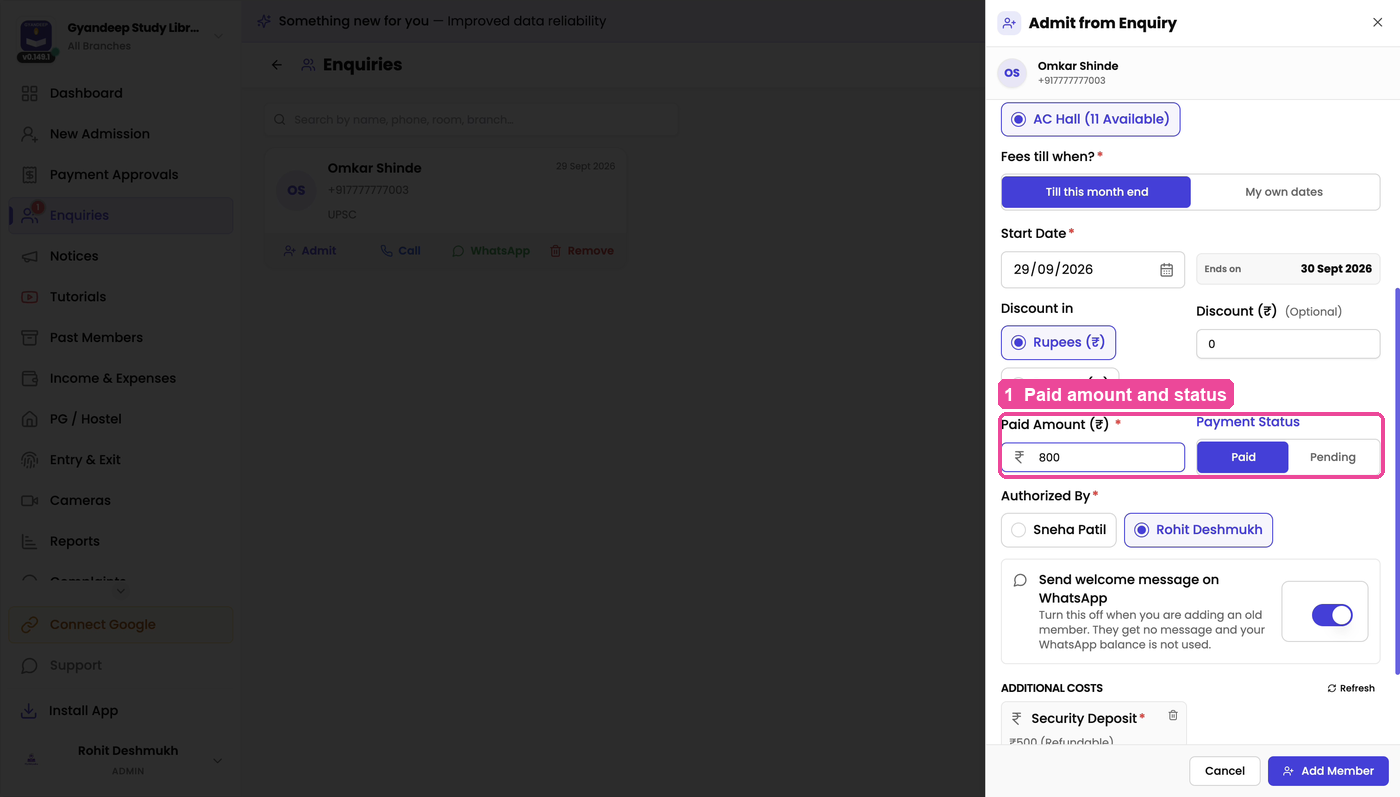
Check Paid Amount (₹), then under Payment Status pick Paid or Pending.
-
Pick who is admitting the student under Authorized By.
-
Leave Send welcome message on WhatsApp on, so the student gets their welcome message.
-
Under Additional Costs, mark each charge, like a security deposit, as Paid or Pending.
-
Tap Add Member.
You will see Member added successfully. The student leaves your Enquiries list and now shows in All Members on the Dashboard.
If something stops you
- No seats available: every seat in that room is taken. Pick another room, or choose Un-Reserved.
- Desk is required for Reserved membership type: pick a Seat, or change the type to Un-Reserved.
- Authority Person is required: pick a name under Authorized By.
- Plan is required or Room is required: pick a plan and a room.
- Need to change more than this panel offers, like the student's photo? Admit them from New Admission with the same WhatsApp number instead. Their account is reused, and they leave Enquiries too.