
Your library's own website
What students see on your library's website (Check Availability, photos, Our Rising Stars, Register), how students change the page language, your .myabhyasika.in web address, and how to change the look, photos, achievers, seats and custom domain from Settings.
Steps checked on 22 October 2026
Every library on Abhyasika gets its own website, with only your library on it. This guide shows what a student sees there and where in Settings you change each part.
Your web address
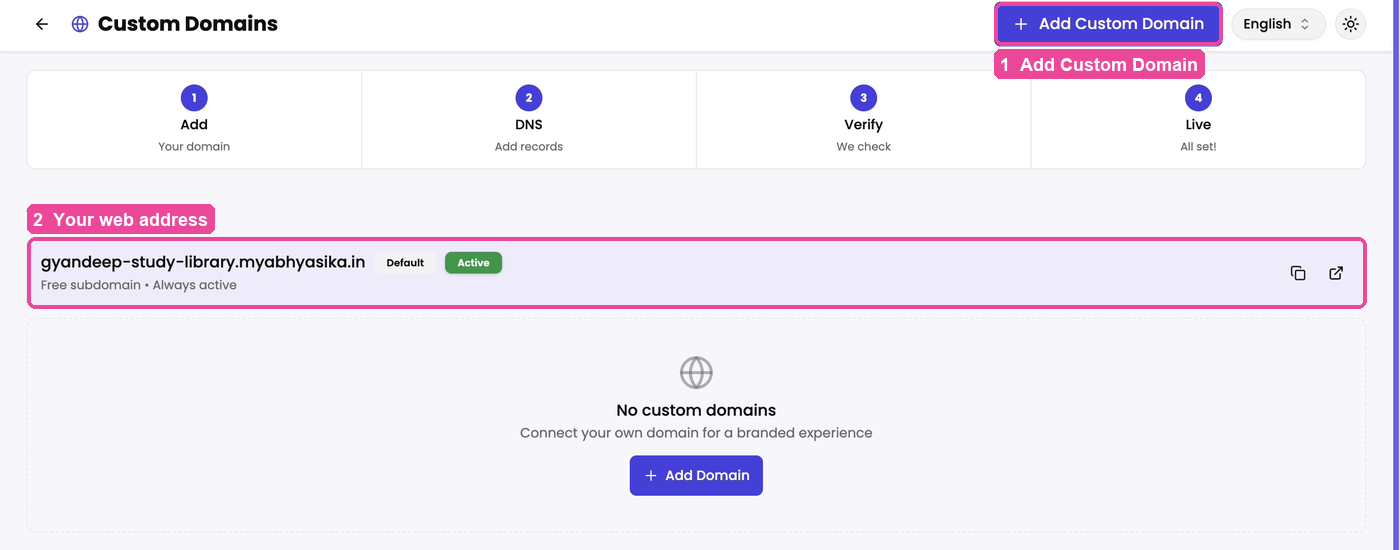
You picked your address when you signed up, on the Set up your library step, under Your library's web address. It is filled in from your library name, and the full address is your name followed by .myabhyasika.in (for example, gyandeep-study-library.myabhyasika.in).
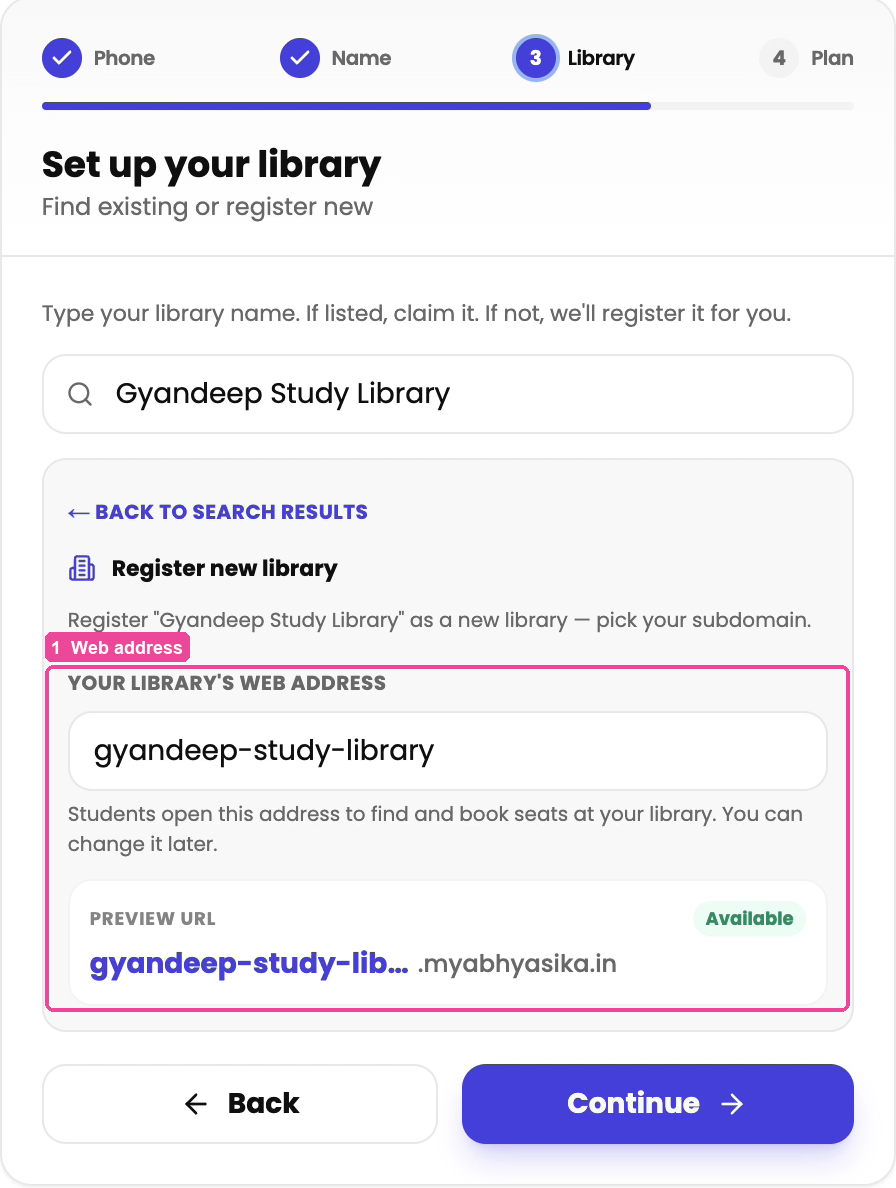
To change it later: in the sidebar, tap Settings, then scroll to Library Details and edit Library Subdomain. If you change it, share the new address with your students again.
To send the address to students, see Share your library link.
What a student sees
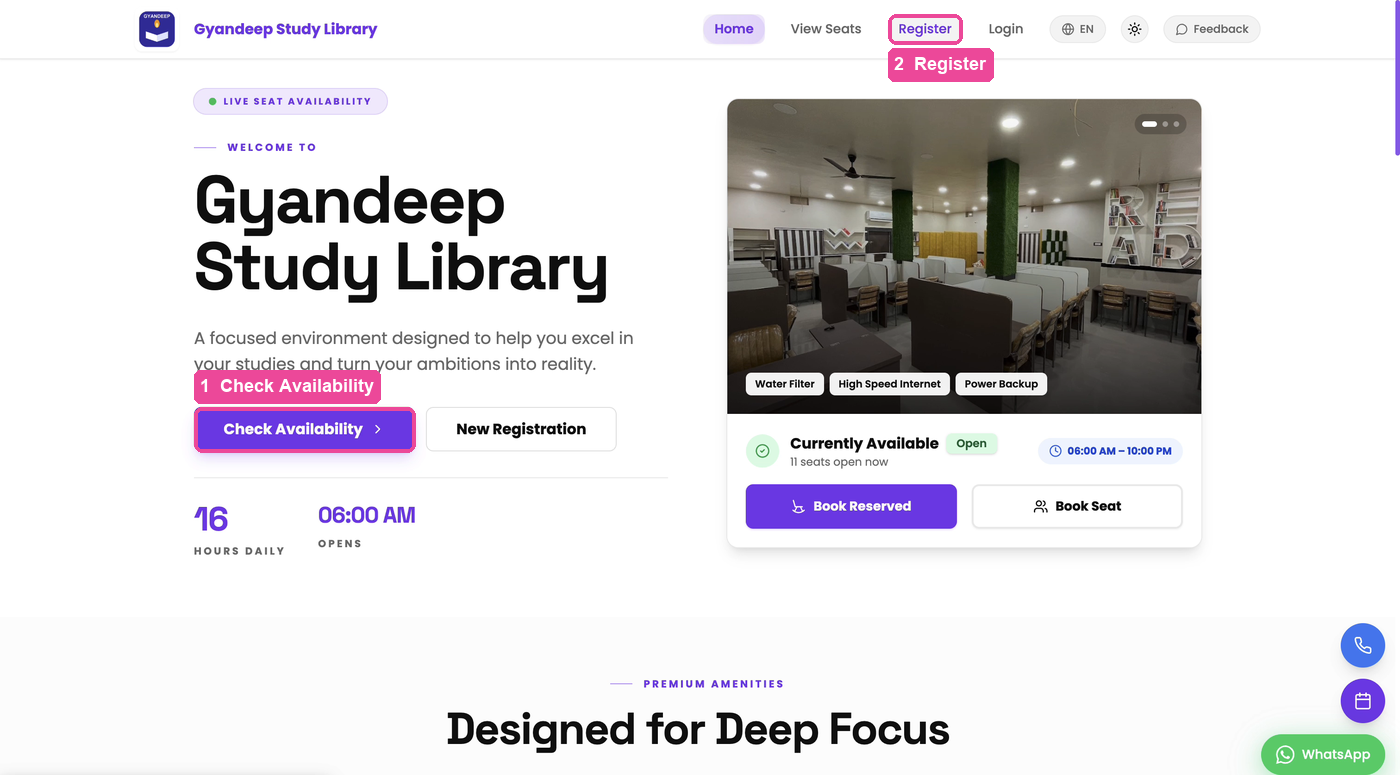
- The top of the page: your library name, your timings, and a photo. Check Availability opens your live seat map so a student can see which seats are free. Students who are not logged in also see Register in the menu at the top; that is where they sign up with you.
- Timings: your shifts, so students can pick one.
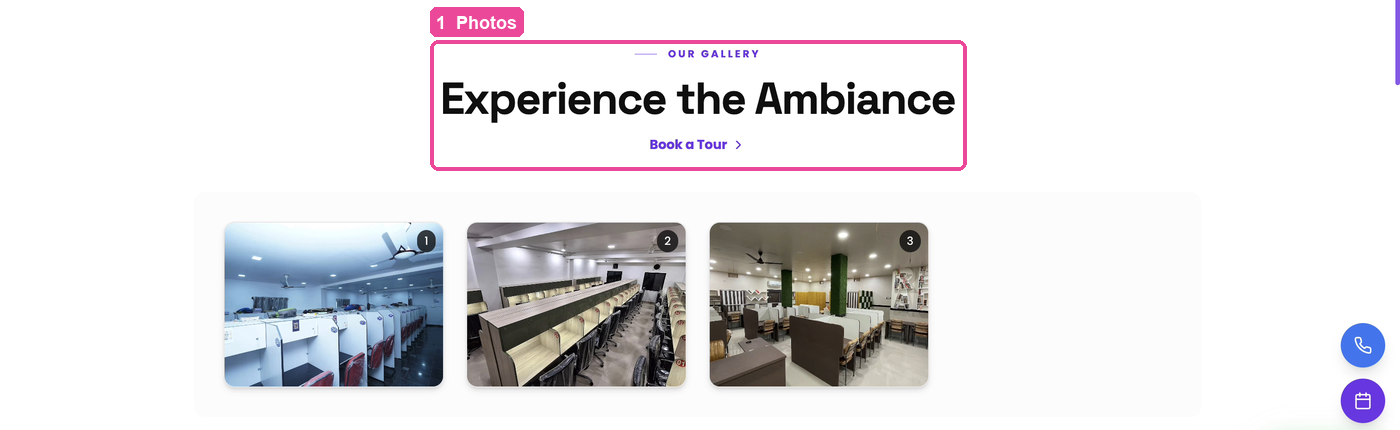
- Experience the Ambiance: your library photos.
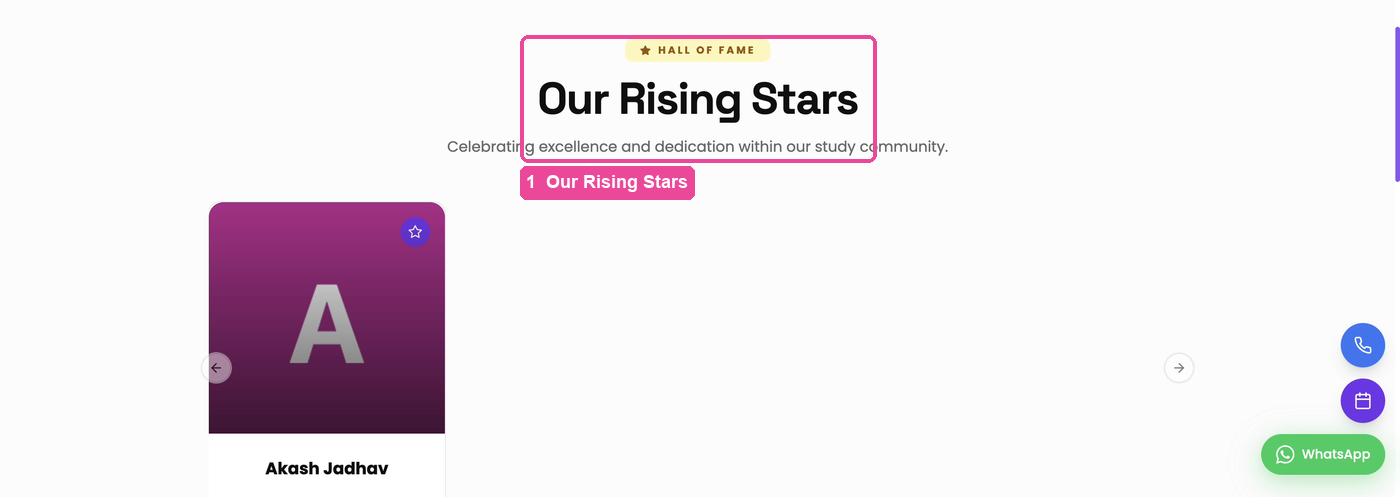
- Our Rising Stars: students from your library who cleared exams.
Anything you change in Settings shows on the website right away.
Language
Each student picks their own language. Tap the globe button showing the current language (for example EN or ಕನ್ನಡ) at the top right of your website or of the sign-in screen, then choose one: English, मराठी, हिंदी, తెలుగు, ಕನ್ನಡ, தமிழ், ગુજરાતી. The page changes straight away and remembers the choice on that phone.
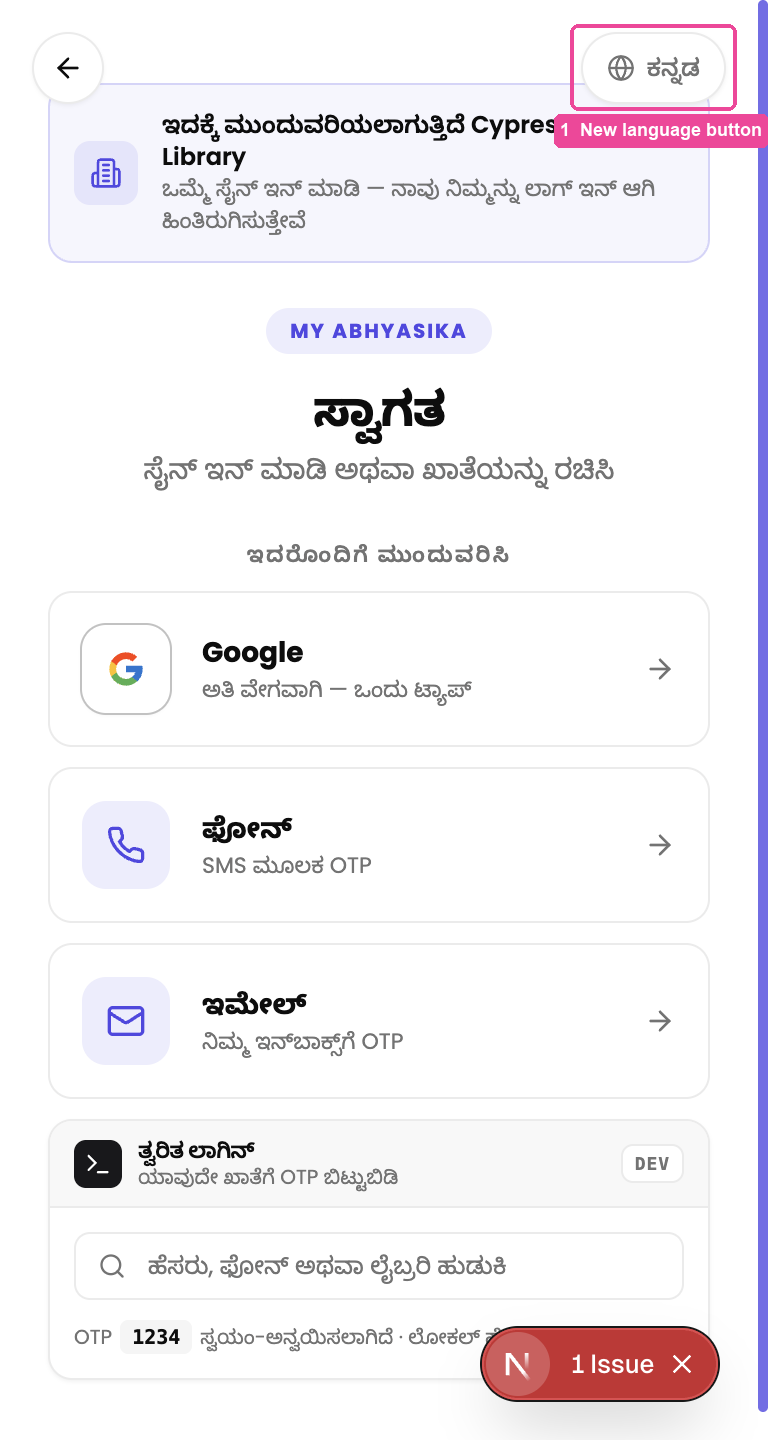
There is no setting for the owner: every visitor reads in the language they choose.
Change what is on your website
All of these are cards on the Settings page. In the sidebar, tap Settings, then the card. After each one, tap Settings in the sidebar again to come back to the cards.
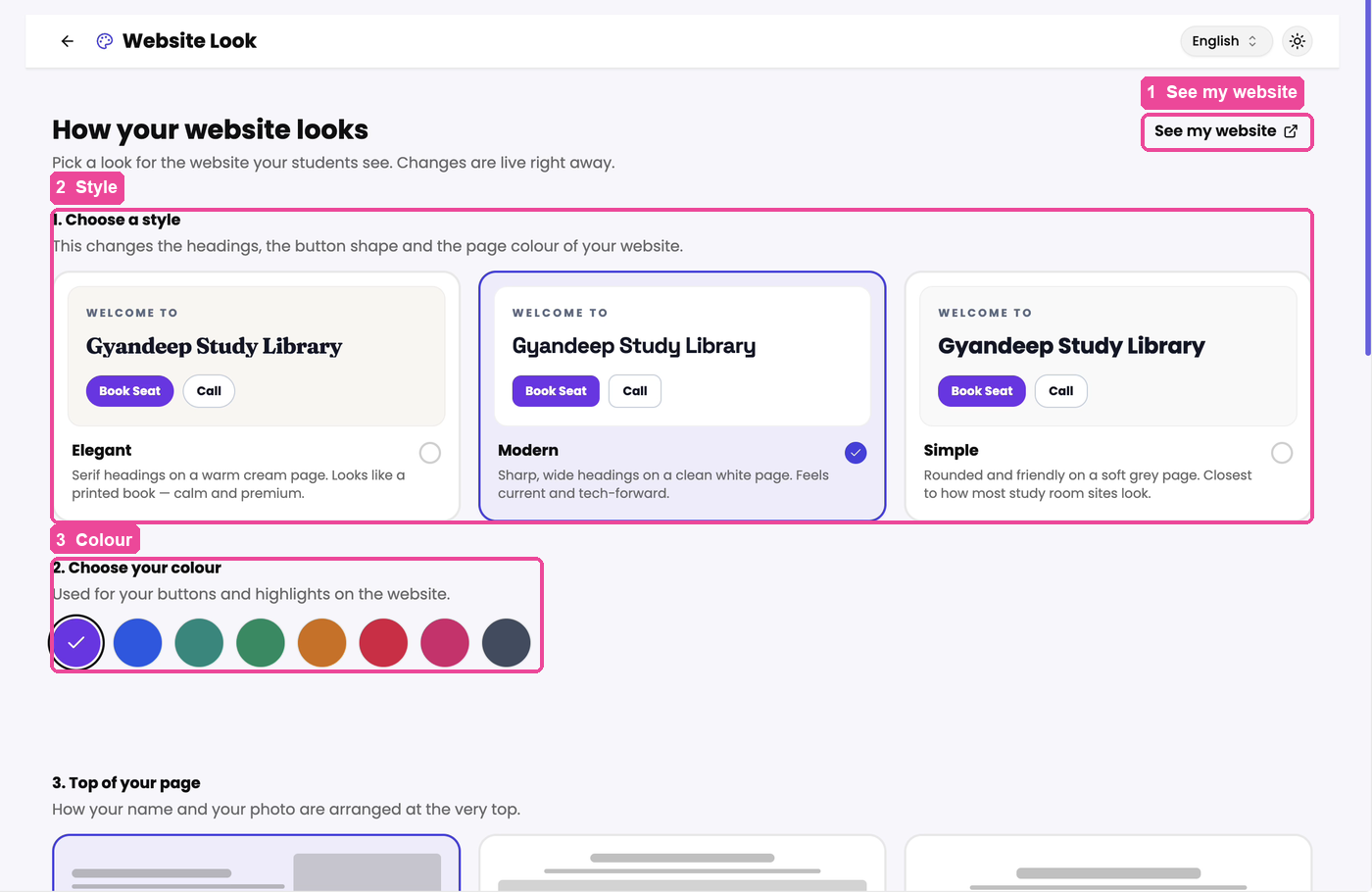
Style and colour: Website Look
- Tap the Website Look card.
- Under 1. Choose a style, pick Elegant, Modern or Simple.
- Under 2. Choose your colour, pick a colour for your buttons.
- Scroll down for 3. Top of your page, 4. Your own words, 5. Numbers row and 6. Sections on your page. In 6. Sections on your page you choose which sections show and in what order.
- Tap See my website to check how it looks. Changes are live right away.
Photos: Library Photos
- Tap the Library Photos card. The Library Images page opens.
- Tap Import from Google to bring in the photos from your Google listing, or Add Insider Images to upload your own.
Libraries with photos show up first when students search on Abhyasika. Aim for 6 to 10 clear photos of your study rooms.
Achievers: Achievers Wall
- Tap the Achievers Wall card. The Achievers page opens.
- Tap Add Achievement, fill in the Achiever Name and the Achievement (for example, the exam they cleared), and add a photo.
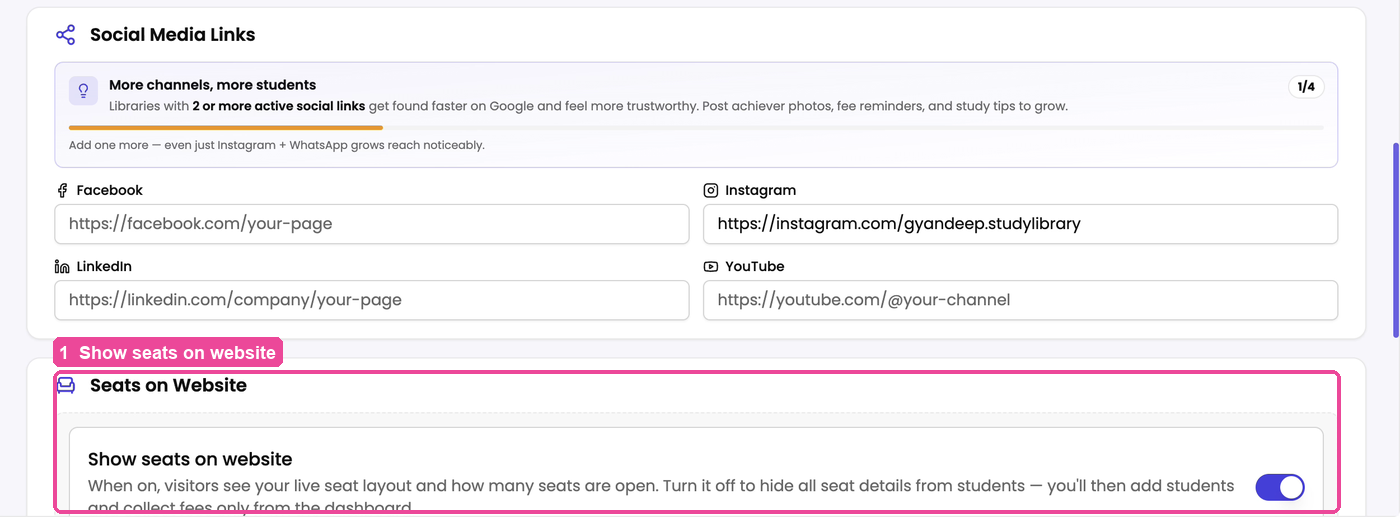
Seats: Seats on Website
On the Settings page, scroll down to Seats on Website. Switch Show seats on website on to show your live seat map and how many seats are open. Switch it off to hide all seat details; you then add students and take fees only from the dashboard.
Your own domain: Custom Domain
- Tap the Custom Domain card. The Custom Domains page opens.
- Under Your Domains you see your free address, marked Default and Active. It always works.
- If you own a domain (for example, from GoDaddy), tap Add Custom Domain and follow the steps: Add, DNS, Verify, Live. DNS changes usually go live in 5 to 10 minutes, and can take up to 24 hours.
If a section is missing on your website
- Check Availability is missing: Show seats on website is off. Switch it on under Seats on Website.
- Experience the Ambiance is missing: you have no photos yet, or none of them could load. Add photos from Library Photos.
- Our Rising Stars is missing: you have not added an achiever yet. Add one from Achievers Wall.
- Register is missing: you are looking while logged in. It only shows to visitors who are not logged in.
- Any other section is missing: check 6. Sections on your page in Website Look; it may be switched off.