
Sign up and set up your library
How a new owner signs up, starts the 14-day free trial with auto-pay (₹5 refunded, nothing charged for 14 days), and finishes the 13 setup steps: branch, seats, timings, plans, payment QR, fees, receipts, sub-admin, logo, photos, achievers, amenities, socials.
Steps checked on 6 October 2026
Create your Abhyasika account, start the free trial, and walk through the 13 setup steps that get your library ready for students.
Before you start
Keep these handy. You can skip most of them and add them later.
- Your mobile number (you get a verification code on it by SMS)
- Your library's address, so you can find it on the map
- How many seats each hall has, and your monthly fee
- Your UPI QR code photo (the one students scan to pay you)
- A UPI app or card, to set up auto-pay for the free trial
Part 1: Sign up
- Open www.myabhyasika.in/software and tap Register Your Library Free.
- On Verify your phone, type your number in Enter mobile number and tap Send OTP.
- Type the 4-digit code you got by SMS and tap Verify & Continue.
- On What's your name?, fill in your first name, last name and Date of birth. Under How did you hear about us?, pick one option. All of these are needed before Continue works. Tap Continue.
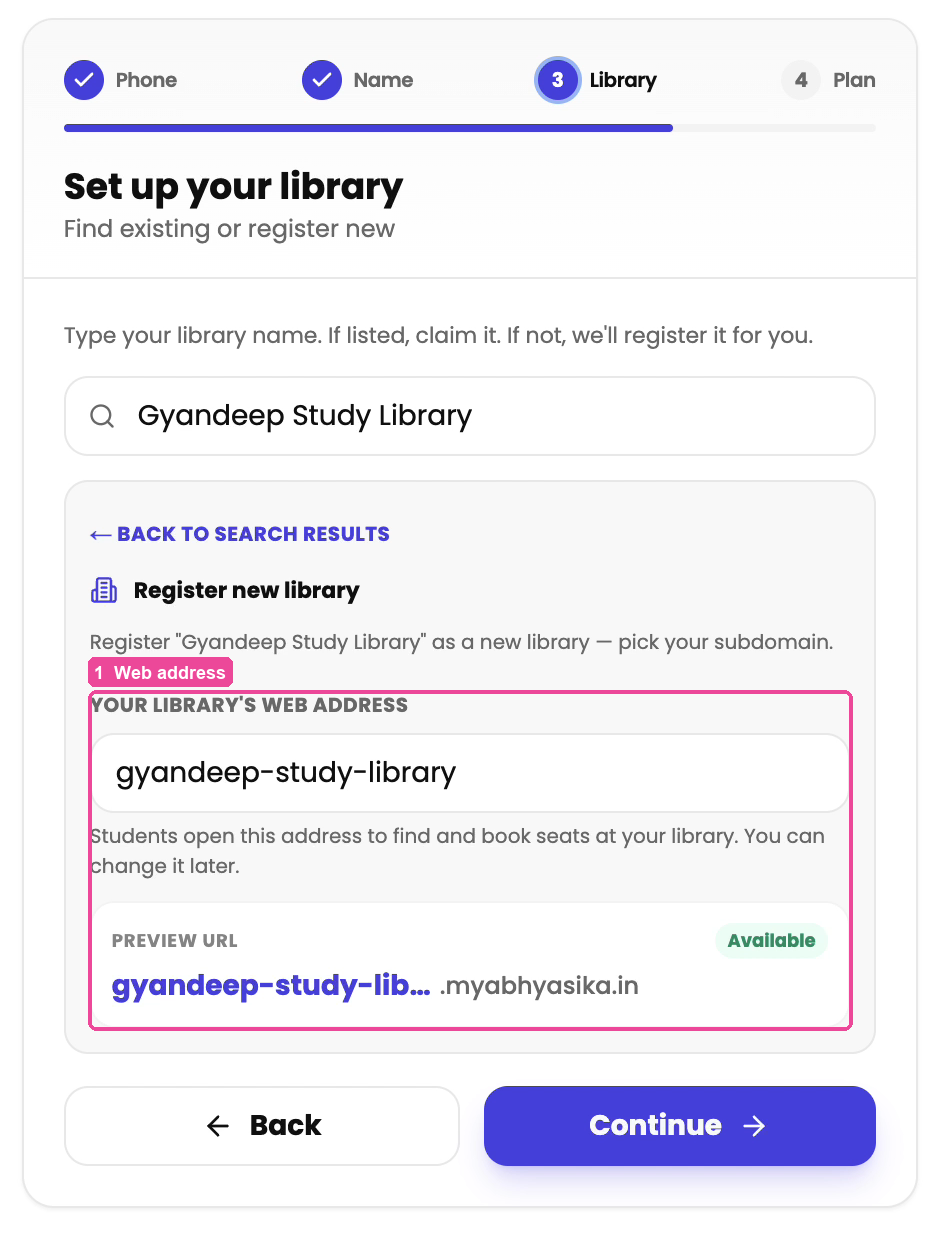
- On Set up your library, type your library's name.
- If your library shows up in the list, tap Add or Claim next to it, then tap Yes, this is mine. You still choose a plan and set up auto-pay (steps 7 to 10), but the big button says Claim and your library's name instead of Start Free Trial. Afterwards you land on Settings, not the 13 setup steps below. Set things up from there (see Set up branches, rooms, seats and plans).
- If it is not in the list, tap None of these is mine — register "…" as new.
- Check Your library's web address. It is filled in from your library's name. This becomes your website address (for example
your-name.myabhyasika.in), and students open it to find and book seats. If it says Already taken, change it a little, for example by adding your area. Tap Continue.
- On Choose a plan, type how many students you have under How many students do you have?, or tap one of the numbers. The right plan gets picked for you. You can tap a different plan if you want. Only registered full-time students count toward the plan. Part-time students and students without a fixed seat are unlimited.
- Tick I agree to the terms and consent to data processing.
- Tap Start Free Trial.
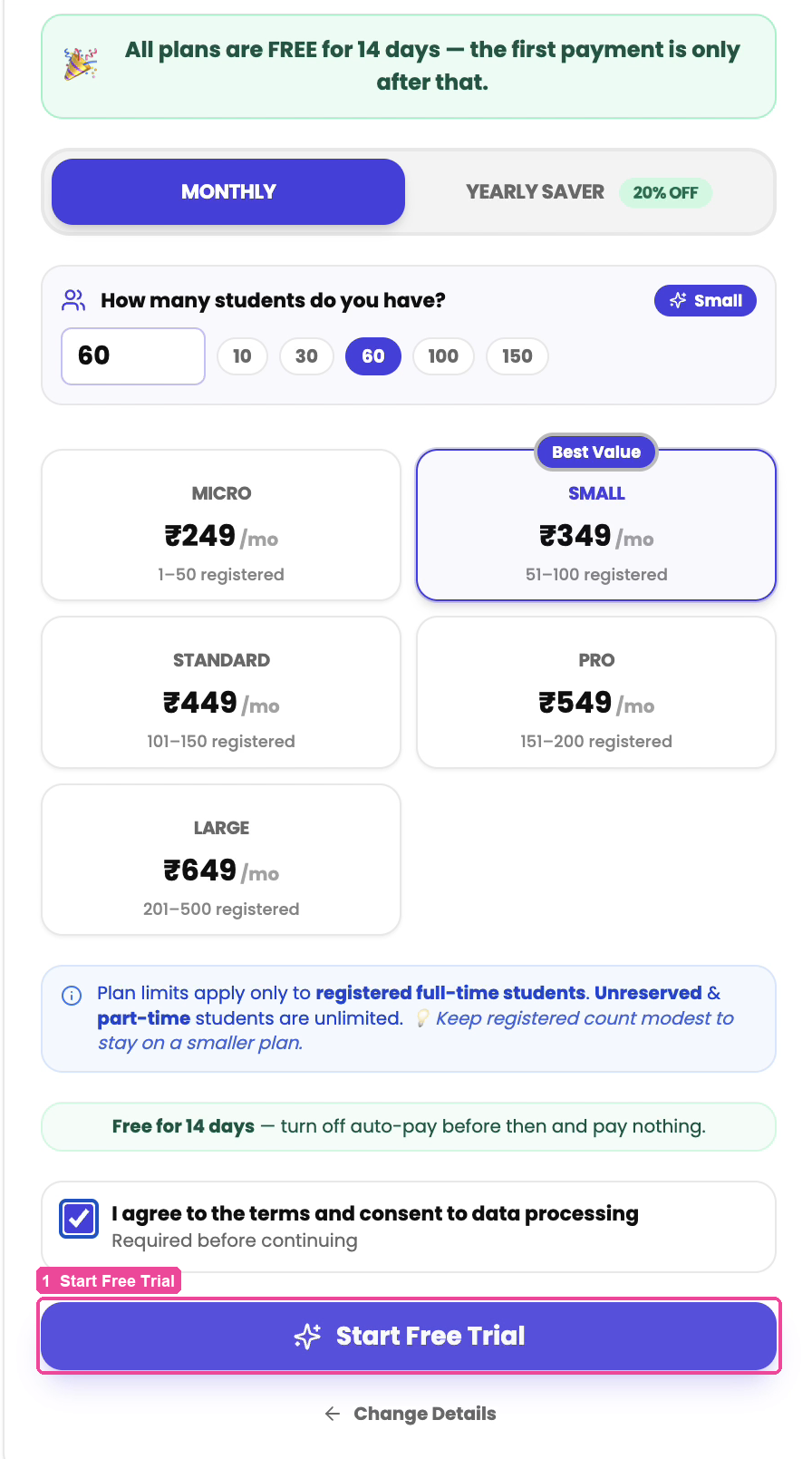
- A payment window opens to set up auto-pay. Approve it with UPI or a card. You pay a ₹5 authorisation, which is refunded. Nothing is charged for 14 days. The first payment is taken only after the 14 days, and only if you still have auto-pay on.
Your dashboard stays locked until auto-pay is on. If you closed the payment window, the dashboard shows Set up auto-pay to start your free trial. Pick your plan there and approve it, or tap Get payment link on WhatsApp to finish it from your phone. To pay for a year instead (2 months free), tap Annual at the top, or tap the green or ₹…/yr — save 2 months line on any plan.
Part 2: Set up your library (13 steps)
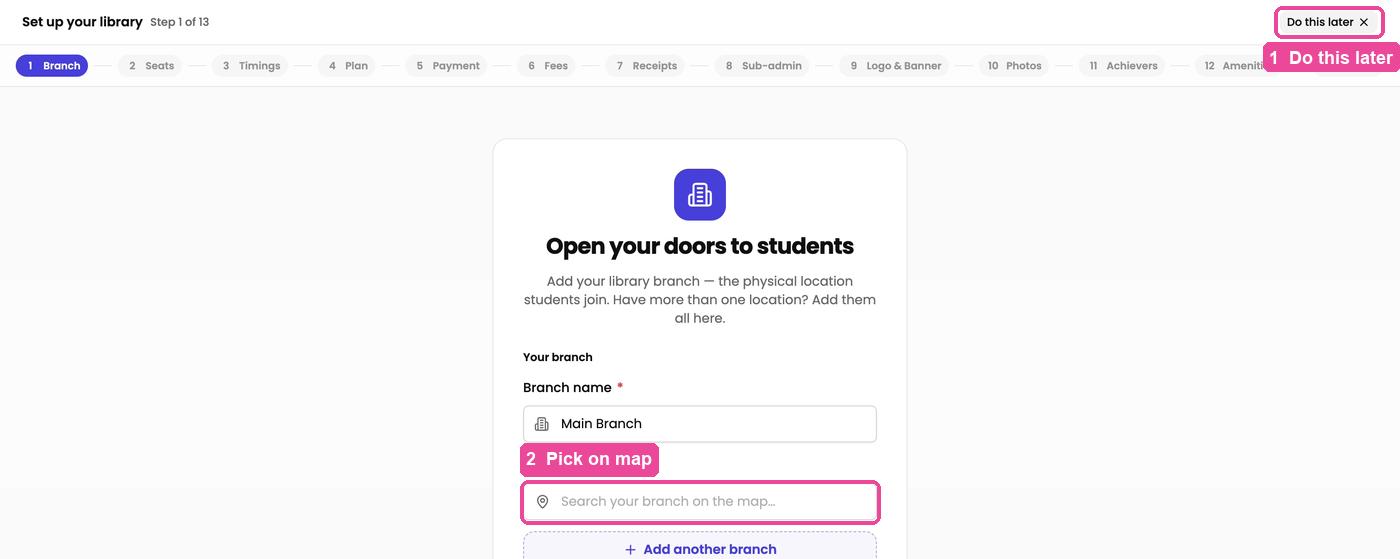
Once you have signed up, the Set up your library screen opens. The row at the top shows all 13 steps, and a green tick means that step is done. You can tap any finished step to go back to it.
Step 1: Branch
- Under Branch name, type a name, for example Main Branch.
- Under Search Branch, tap Search your branch on the map…, type your area and pick your library from the list. This step cannot be finished without a location, because students find you on the map.
- Have a second location? Tap Add another branch.
- Tap Save & continue.
Step 2: Seats
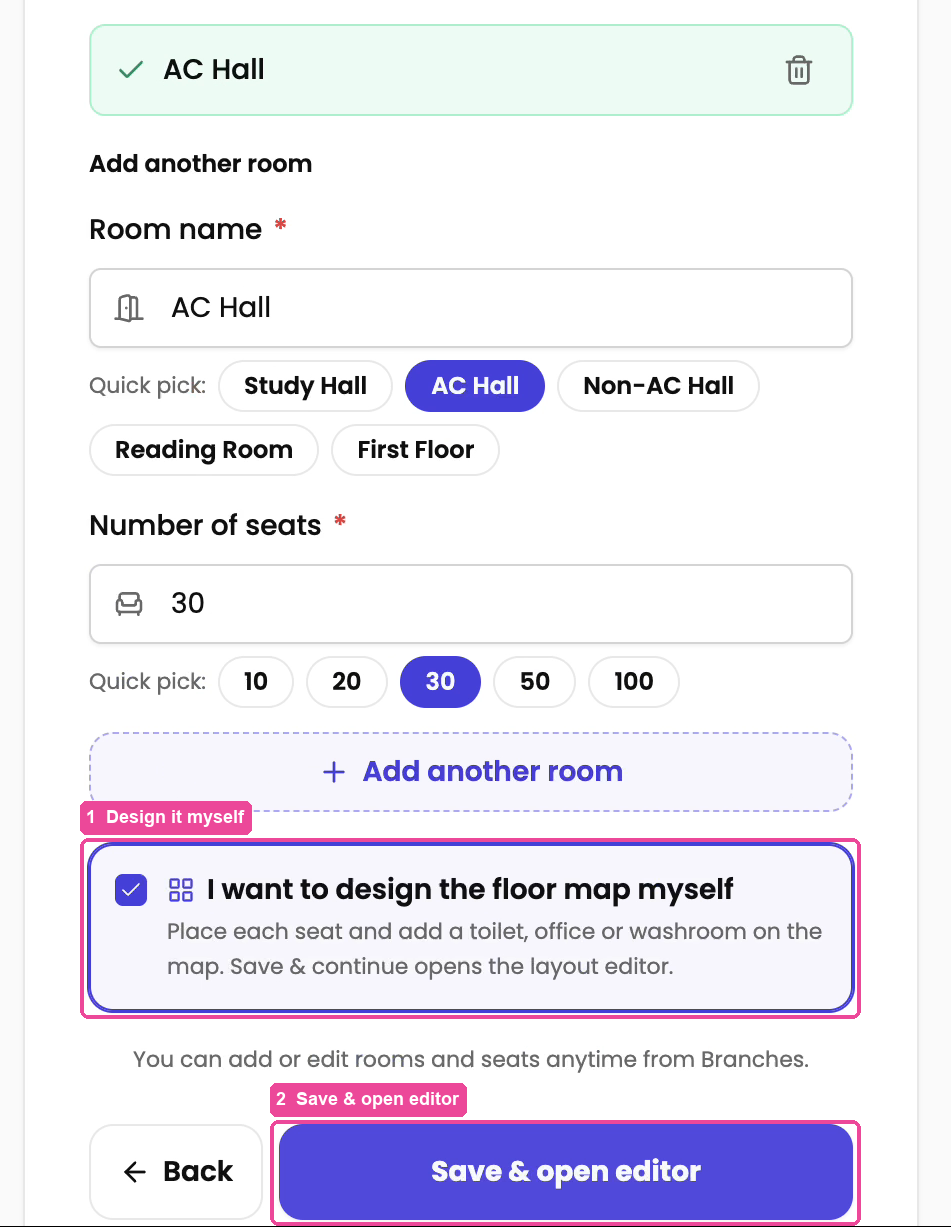
- Under Room name, type your hall's name, or tap a Quick pick: name such as AC Hall.
- Under Number of seats, type the number or tap a Quick pick: number. It starts at 30.
- More halls? Tap Add another room.
- Want the seats to sit exactly the way they do in your hall, with washrooms and doors marked? Tick I want to design the floor map myself. The button changes to Save & open editor, and the floor map editor opens. See Design your floor map. When you tap Save layout there, you come back to setup.
- Otherwise tap Save & continue, and the seats are laid out for you.
Step 3: Timings
- On When is your library open?, Full Day is already ticked.
- If you also run morning, afternoon, evening or night batches, tick them too. You can change the Opens and Closes times for each one.
- Tap Save & continue.
Step 4: Plan
- On Set your plans, type the Plan name, for example Monthly Plan.
- Change Plan price (₹) to your fee. It starts at 1000.
- Which rooms does this plan apply to? has all rooms picked already. Remove any room this plan is not sold in.
- Tap Save & continue. You can add quarterly or yearly plans later.
Step 5: Payment
- On Let students pay you online, tap Upload your UPI QR image and pick the photo of your QR.
- Your UPI ID and Name on the QR are read from the QR. Check that they are right.
- Tap Save payment QR.
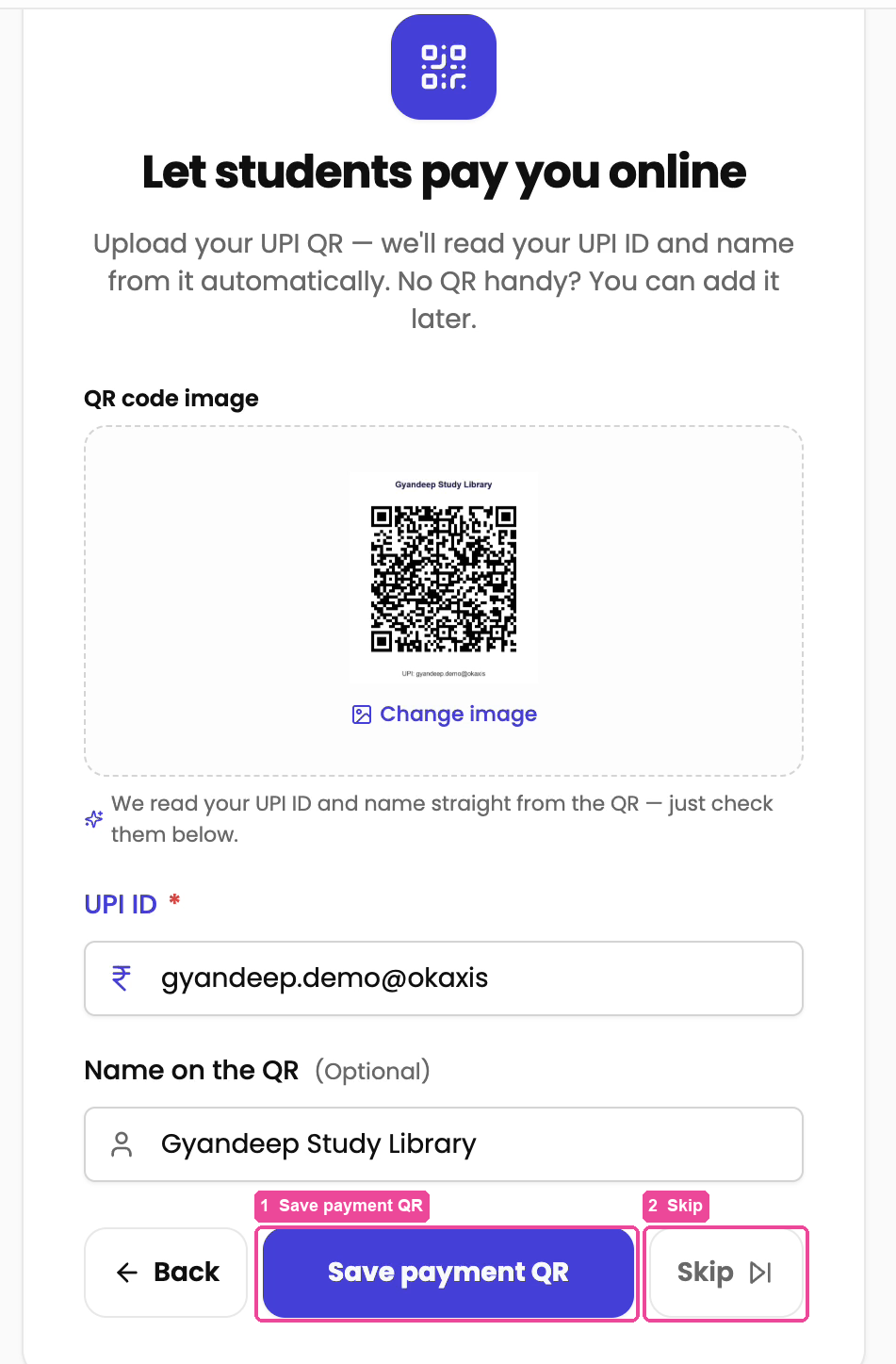
Step 6: Fees
These are charges you collect once, not the monthly plan.
- On Any one-time fees?, tap a Quick pick: such as Security Deposit, or type a Fee name yourself.
- Type the Amount (₹).
- If you give the money back when the student leaves, tick Refundable when the student leaves. A one-time fee is charged once, not again on every renewal.
- Tap Add this fee, then Save & continue. No such fees? Tap Skip.
Step 7: Receipts
- On Receipts & reminders, tap Upload signature to add your signature or stamp to receipts. Until you do, a default stamp is used.
- Personal Renewal Reminders sends each student a WhatsApp message 5, 4 and 3 days before their plan ends, asking if they want to continue.
- Expiry Reminders sends a WhatsApp message on the day a plan ends.
- Mandatory Signature puts your signature or stamp on every receipt.
- Tap Save & continue.
Step 8: Sub-admin
A sub-admin is a staff member, for example the person at your counter. They see only the halls you give them. They never see your settings, plans or earnings.
- On Add a sub-admin, fill in First Name, Last Name, Gender, Qualification and Phone Number. If their WhatsApp number is different, turn on WhatsApp number is different and type it.
- Under Halls this sub-admin manages, pick their halls.
- Tap Save sub-admin & continue.
- Each new helper costs ₹49 a month by auto-pay. Tap Turn on for ₹49/month to let them log in now. During your free trial nothing is charged until the trial ends. Tap Later to turn it on another time.
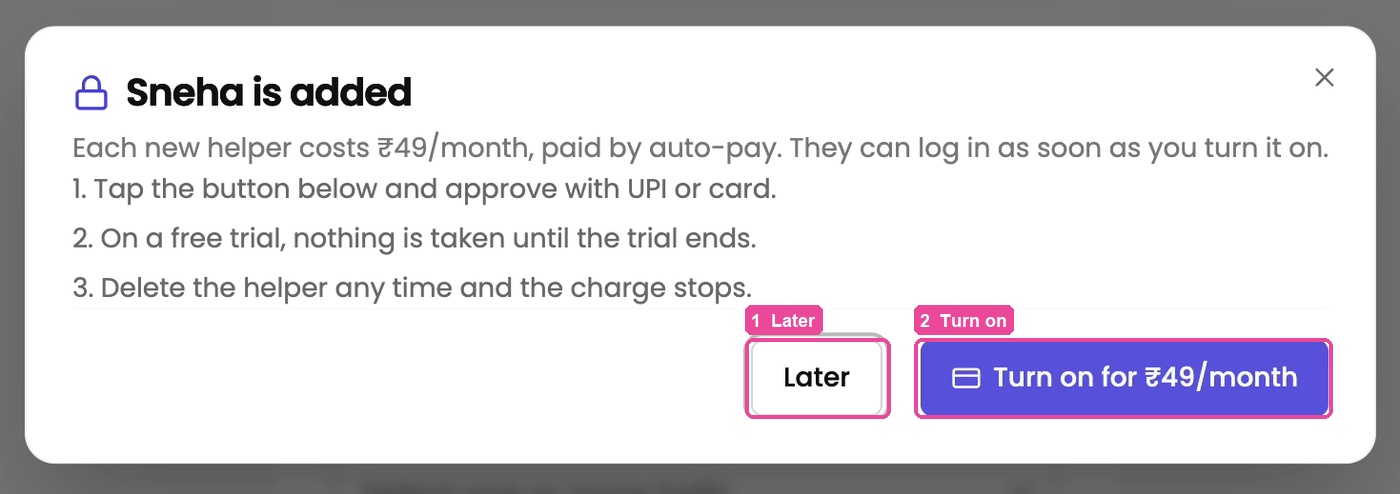
No staff yet? Tap Skip for now. More on helpers: Add a sub-admin.
Step 9: Logo & Banner
- On Make your library look professional, tap Upload banner for the wide picture at the top of your page, and Upload logo for your logo.
- Pick a Brand colour. It is used for your buttons and the default banner.
- Under Choose a style, pick how your website looks.
- Tap Save & continue. If you did not upload anything, a clean banner and logo are made for you from your library's name.
Step 10: Photos
- On Show off your study room, tap Import photos from Google if your library is already on Google. Or tap Upload photos and pick a few from your phone. You can pick several at once.
- Tap Save & continue, or Skip.
Step 11: Achievers
Students who cleared an exam at your library are the strongest reason for a new student to join.
- On Show off your achievers, type the Student name.
- Under What they cleared, search and pick the exam, for example MPSC.
- Tap Tap to add a photo (optional) if you have their photo.
- Tap Add this achiever, then Save & continue, or Skip.
Step 12: Amenities
- On What does your library offer?, tick everything you have, for example WiFi, AC, water filter, power backup. Students filter libraries by these.
- Tap Save & continue.
Step 13: Socials
- On Help students find you online, paste the links to your Facebook, Instagram, LinkedIn or YouTube pages. They show on your website.
- Tap Save & continue, or Skip.
Done
You see Your library is ready!. Tap Go to your dashboard.
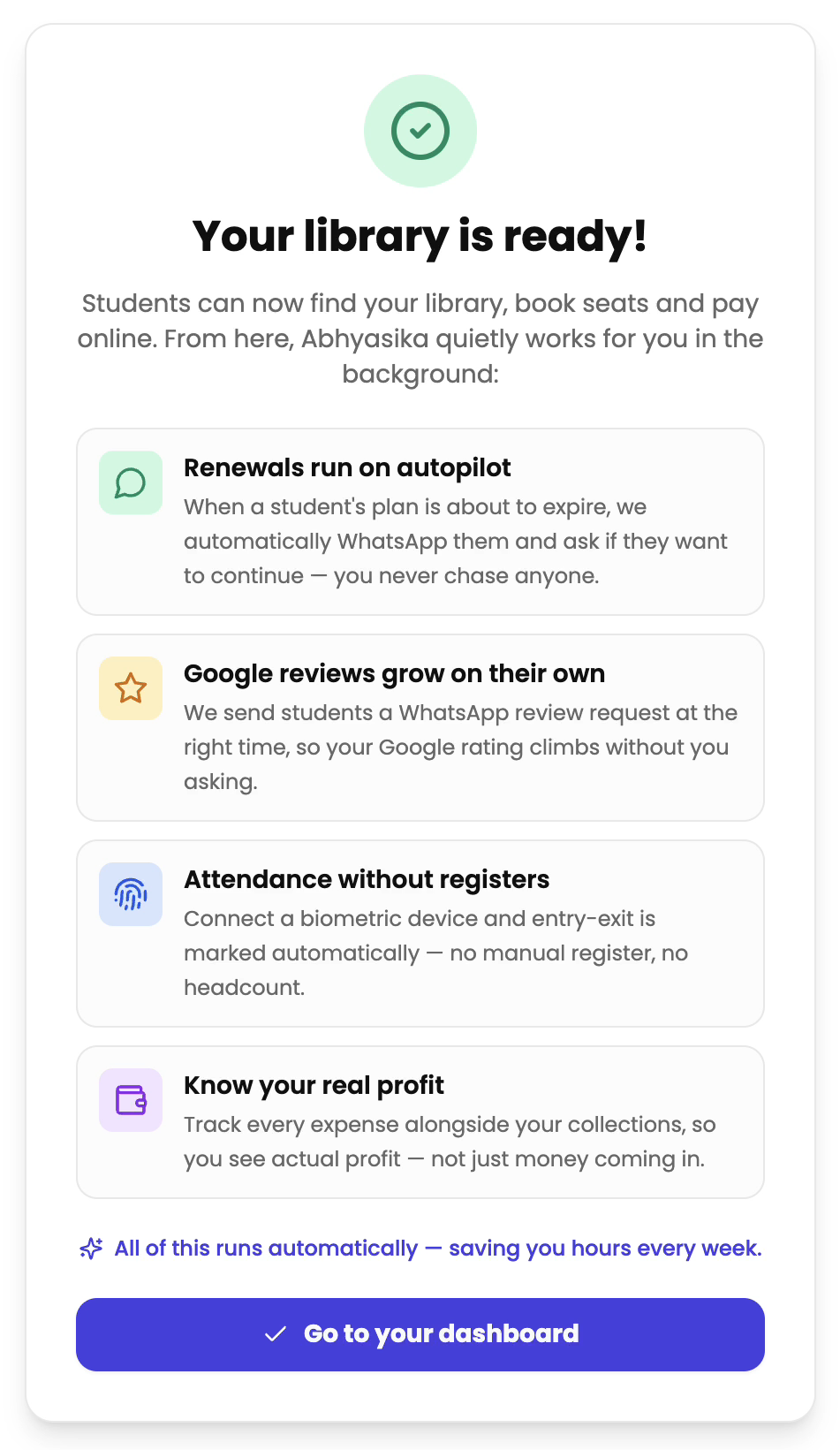
Next: Admit a new student.
Skipping a step, or stopping halfway
- Do this later (top right) closes setup. Tap Leave setup to go to your dashboard. Everything you saved stays saved. Anything you did not finish, you do from Settings (see the table below).
- Steps 1 to 4 (Branch, Seats, Timings, Plan) have no Skip. Students cannot book or pay until they are done.
- Skip on Fees, Sub-admin, Photos, Achievers and Socials is remembered, so setup does not ask again.
- Skip on Payment, Receipts and Amenities is not remembered. Finish those from Settings (see the table below), because students can only pay you online once your payment QR is added.
Change any of this later
Everything from setup can be changed later. In the sidebar, tap Settings, then:
| What | Where in Settings |
|---|---|
| Branches, rooms, seats, floor map | Branches |
| Plans and timings | Membership Plans (timings are under Manage Shifts) |
| Payment QR, reminders | Payment & Receipts, then the Getting paid tab |
| Receipt signature and what prints on it | Payment & Receipts, then the Receipt tab |
| Sub-admins | Staff / Sub Admins |
| Colour and website style | Website Look |
| Banner and logo | Library Details, lower on the same Settings page (Website Banner and Favicon, which is your logo) |
| Photos | Library Photos |
| Achievers | Achievers Wall |
| Amenities | Amenities |
| One-time fees, social media links | Library Details, lower on the same Settings page (One-time Fees, Social Media Links) |
If something stops you
- Can't continue on the name step: first and last name need at least 2 letters each, and Date of birth and How did you hear about us? are both needed. You must be at least 10 years old.
- Already taken under the web address: another library has it. Add your area or city to the name.
- "Please add your branch with its location." on the Branch step: pick your branch from the map search. A typed name alone is not enough.
- Dashboard says Set up auto-pay to start your free trial: auto-pay was not finished. Approve it there, or tap Get payment link on WhatsApp.
- Dashboard says Your bank is confirming auto-pay: you set up auto-pay from your bank account (this is offered on the WhatsApp payment link). Your bank takes 1 to 2 days to confirm it. Nothing has been charged and you do not need to do anything. Your dashboard stays open till then.
- Dashboard says Your bank has confirmed auto-pay: your bank said yes. The amount and date shown are when the first payment is taken, automatically. You do not need to do anything, and it cannot be paid earlier than that date.
- Still stuck? Tap Support in the sidebar. See Get help from support.