
Your dashboard, box by box
What every tile and box on the dashboard means (Active Members, Pending Payment, Today snapshot, Waiting List, Confirmations, Review Messages and more) and what to do about each.
Steps checked on 29 September 2026
This guide walks through every box on your dashboard: what each one tells you and what to do about it.
To open the dashboard, tap Dashboard at the top of the sidebar. Use the All Branches switch at the top right to see one branch or all of them together.
The number tiles at the top
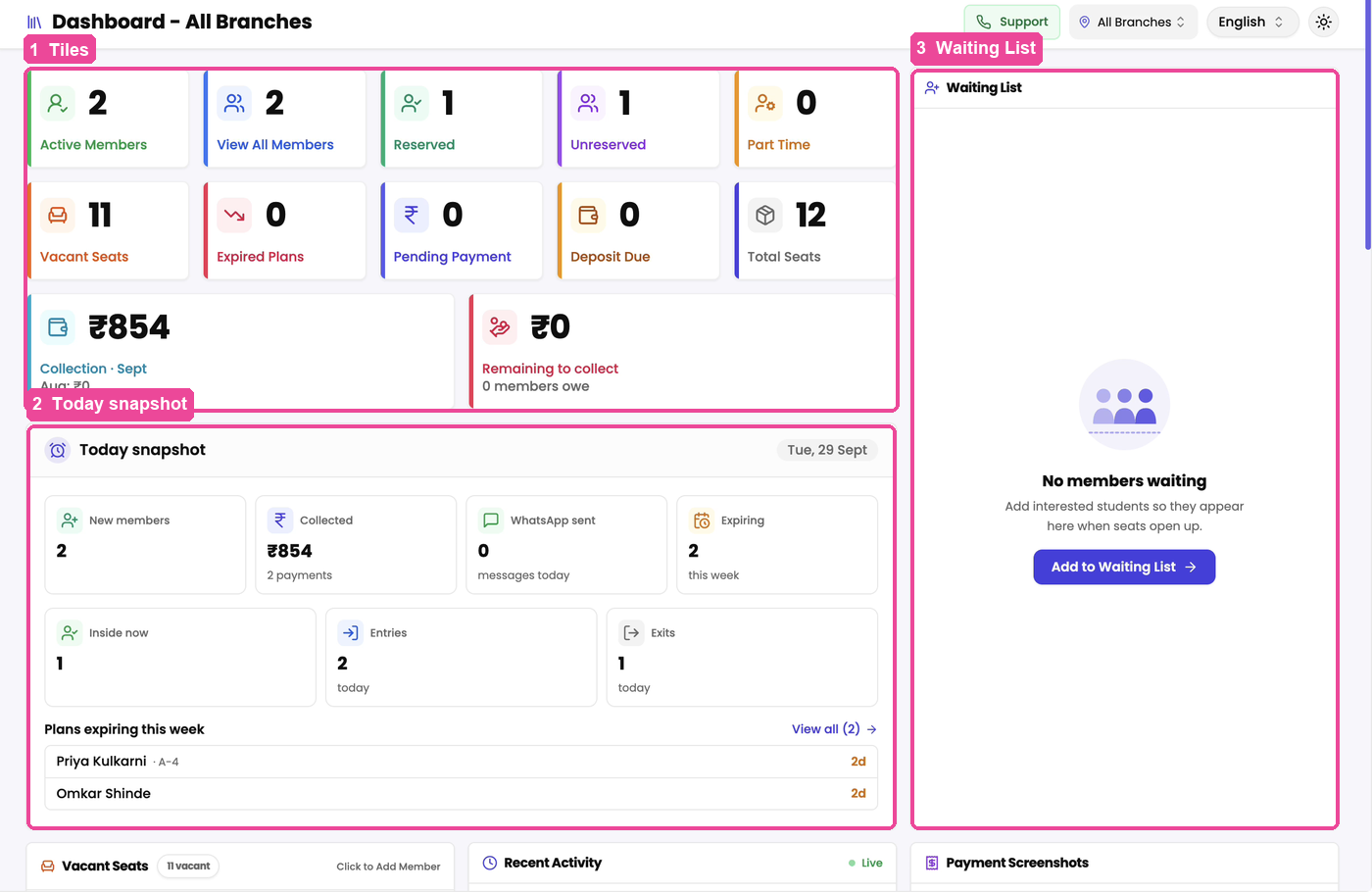
Tap any tile to open the list of students behind the number.
- Active Members: students whose plan is running right now. Check this number first each day.
- View All Members: everyone on your books, including expired and unpaid plans. It is always bigger than Active Members.
- Reserved: students who have a fixed seat of their own.
- Unreserved: students who sit on any free seat.
- Part Time: students on a shift plan, such as a morning-only plan.
- Vacant Seats: seats nobody is sitting on. Tap it to open the seat map and fill a seat.
- Expired Plans: students whose plan has ended. Renew them or remove them. See Renew a plan and collect the fee.
- Pending Payment: students still sitting in your library who have not paid in full. Collect from them.
- Deposit Due: students who still owe a one-time fee, such as a security deposit.
- Total Seats: every seat you have set up. Tap it to open the seat map.
The two money tiles
- Collection: money collected this month so far. The smaller line shows last month's total for comparison.
- Remaining to collect: money your members still owe, and how many members owe it. If it is not zero, open Pending Payment and follow up.
Today snapshot
- New members: students admitted today.
- Collected: money taken today, and how many payments.
- WhatsApp sent: WhatsApp messages sent today.
- Expiring: plans ending this week.
- Inside now, Entries, Exits: who is in the library right now, and today's entries and exits. These three need an entry machine. Without one, you see a card about setting up a machine instead. See Which entry machine to buy.
- Plans expiring this week: the students whose plan ends soonest. Remind them first. Tap View all for the full list.
Waiting List
These are students waiting for a seat. When a seat opens up, admit someone from here. Tap Add to Waiting List to add an interested student.
Vacant Seats, Recent Activity, Payment Screenshots
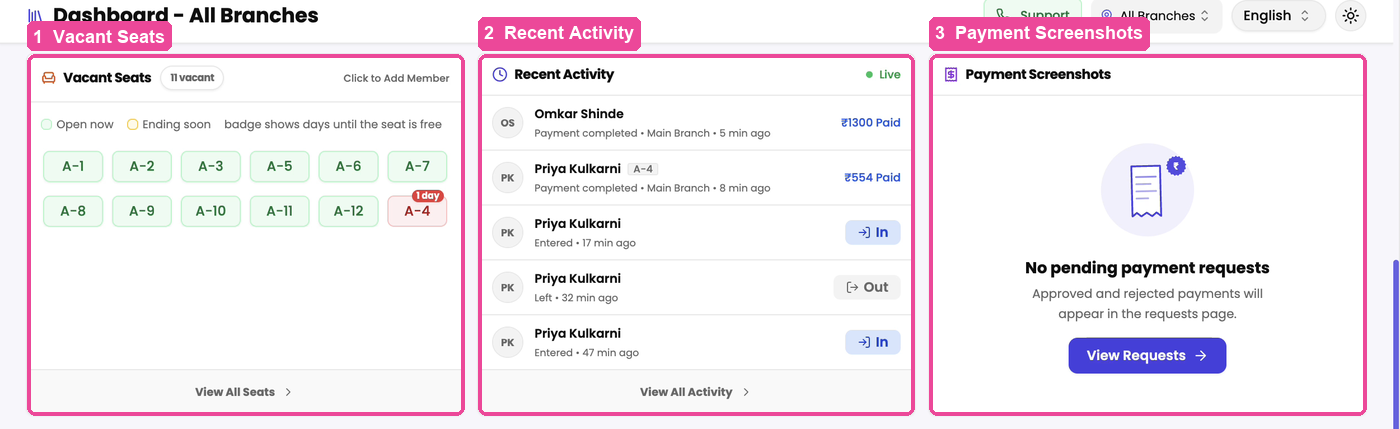
- Vacant Seats: every free seat by name. A red badge counts the days until a seat frees up. Tap a seat to admit a student to it.
- Recent Activity: every payment, entry and exit as it happens, marked Live. Tap View All Activity for the full history.
- Payment Screenshots: payment screenshots students uploaded after paying online. Approve or reject each one. Tap View Requests to see them all.
Study Room Timings and WhatsApp Messages
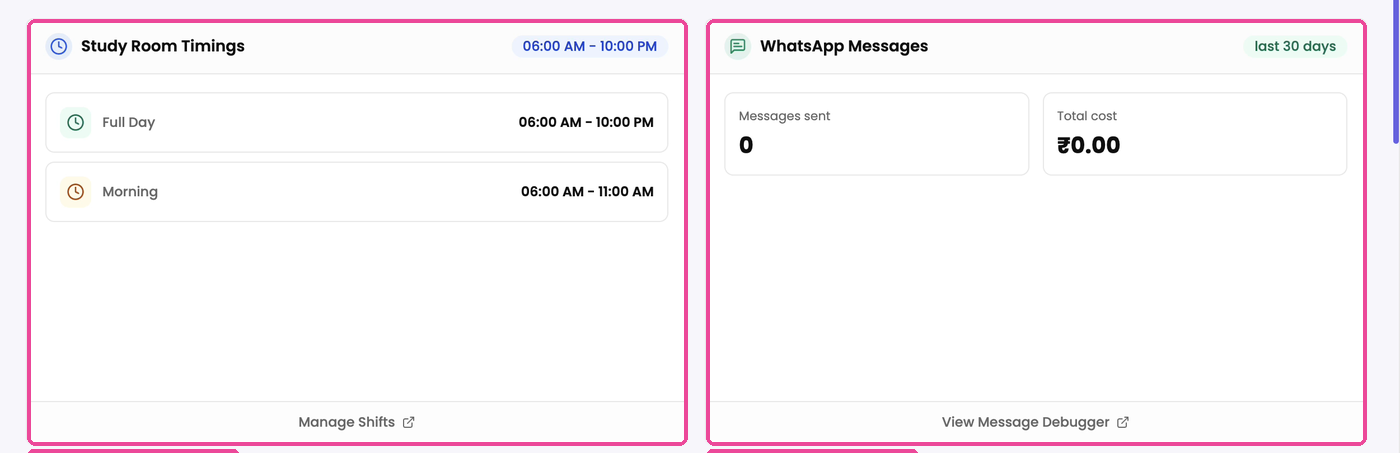
- Study Room Timings: your shifts and their hours. Tap Manage Shifts to change them.
- WhatsApp Messages: how many messages went out in the last 30 days and what they cost. If the cost looks high, tap View Message Debugger to see which message is going out most.
Performance Analytics, Member Visits, Confirmations
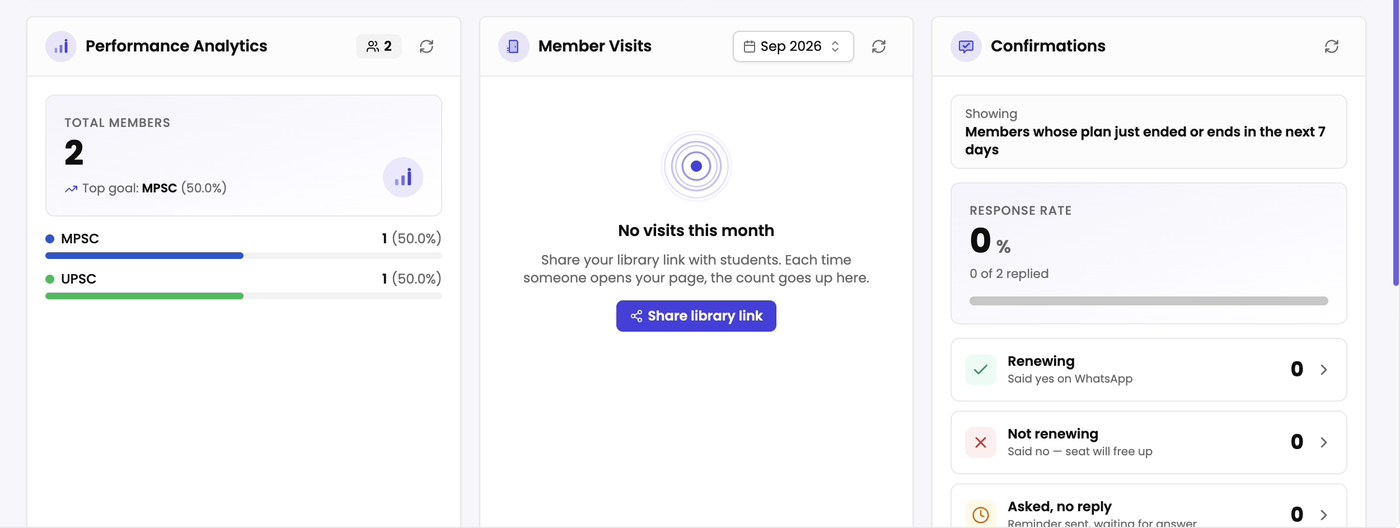
- Performance Analytics: which exams your students are preparing for, such as MPSC or UPSC, and how many for each.
- Member Visits: how many people opened your library's web page this month, split into members and guests. If it says No visits this month, tap Share library link and send the link to students. See Share your library link.
Confirmations
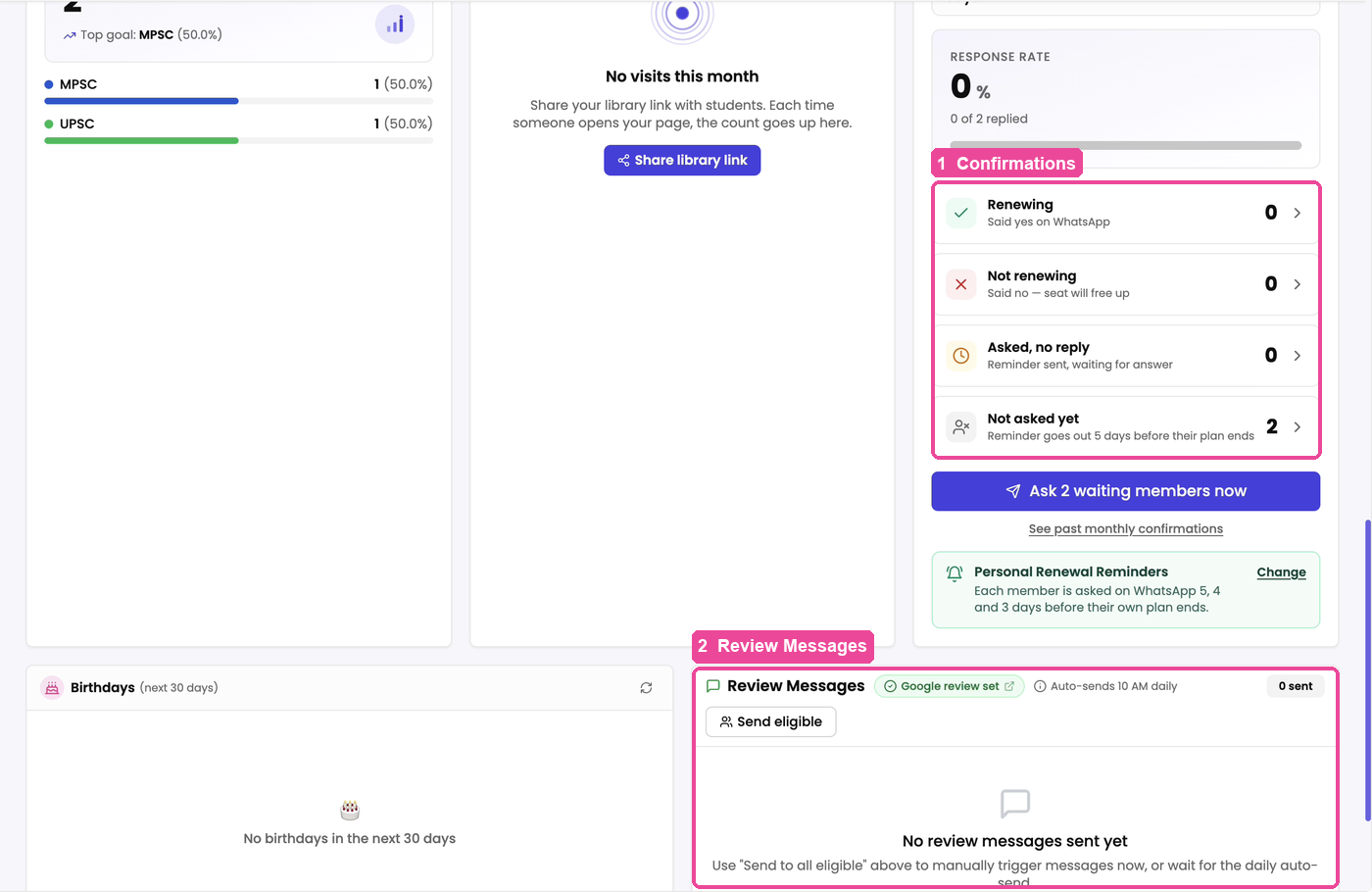
This box shows which students have told you, on WhatsApp, whether they will continue next month. What you see depends on which reminders your library uses.
If you use Personal Renewal Reminders, you see members whose plan just ended or ends soon, sorted into four groups. Tap a group to see the names.
- Renewing: said yes on WhatsApp. Keep their seat.
- Not renewing: said no. Their seat will free up, so offer it to someone on your Waiting List.
- Asked, no reply: got the reminder but have not answered. Call them.
- Not asked yet: the reminder has not gone out yet. To ask them now, tap the Ask ... waiting members now button under the list. It uses messages from your WhatsApp balance.
You choose when the reminder goes out under When should we ask about renewing?. In the sidebar, tap Settings, then Payment & Receipts, then the Getting paid tab.
If you use Monthly Alerts instead, the box shows replies to your last monthly alert: Confirmed, Not confirmed and Pending. Tap Send confirmation message to ask everyone again.
Birthdays and Review Messages
- Birthdays: students with a birthday in the next 30 days.
- Review Messages: WhatsApp messages asking your students for a Google review. They go out by themselves at 10 AM every day, to active students who joined more than a month ago and have not reviewed yet. Tap Send eligible to send them now. Each one uses a message from your WhatsApp balance. This needs your Google review link; if you see No review link — set up, tap it. It opens Settings, where you add the link under Branch locations & review links.
If a box is empty
Most boxes show an empty message on a new account, such as No members waiting or No pending payment requests. They fill in once you admit students and take payments. Start with Admit a new student.