Add and connect your entry machine
Add your machine on Entry & Exit > Devices with its serial number, enter Server Address device.myabhyasika.in and Server Port 59827 on the machine so it shows Online, what to do if it stays offline, and see who came in on the Live and History tabs.
Steps checked on 29 September 2026
This guide adds your entry machine to Abhyasika, connects it over the internet, and shows where to see who came in and went out.
Before you start
- The machine is fixed at your gate, switched on, and has internet: a LAN cable from your router, or WiFi. It does not need a computer.
- Keep the machine's serial number ready. It is printed on a label on the back of the machine, or shown on the machine under Menu > System Info.
- No machine yet? See Which entry machine to buy.
Add the machine in the app
-
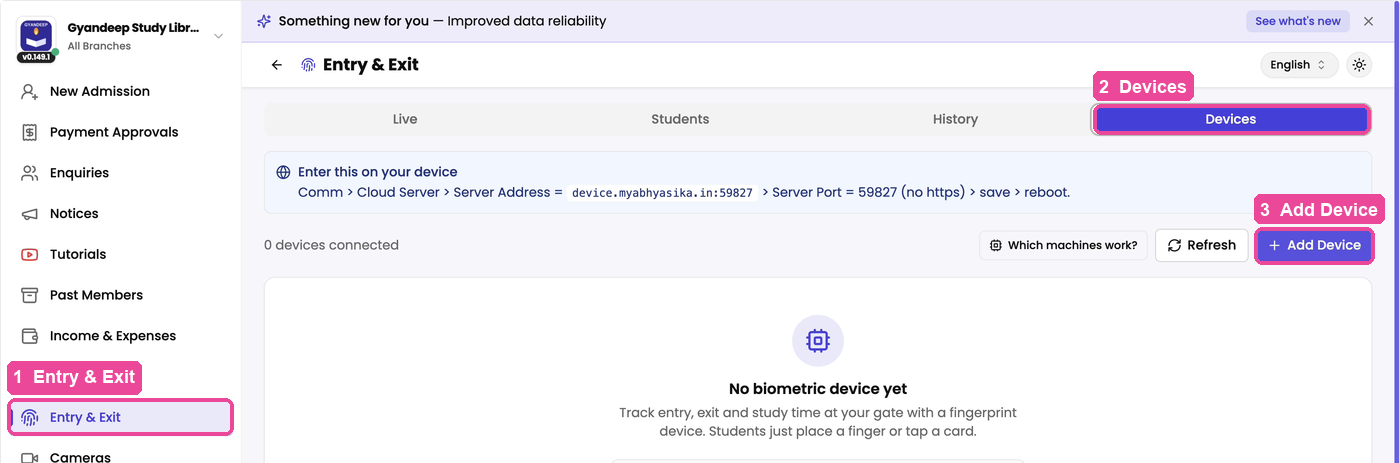
In the sidebar, tap Entry & Exit.
-
At the top, tap the Devices tab. This is where machines are added.
-
Tap Add Device.
-
A window asks Which machine do you have? Tap your model, for example eSSL K90 Pro.
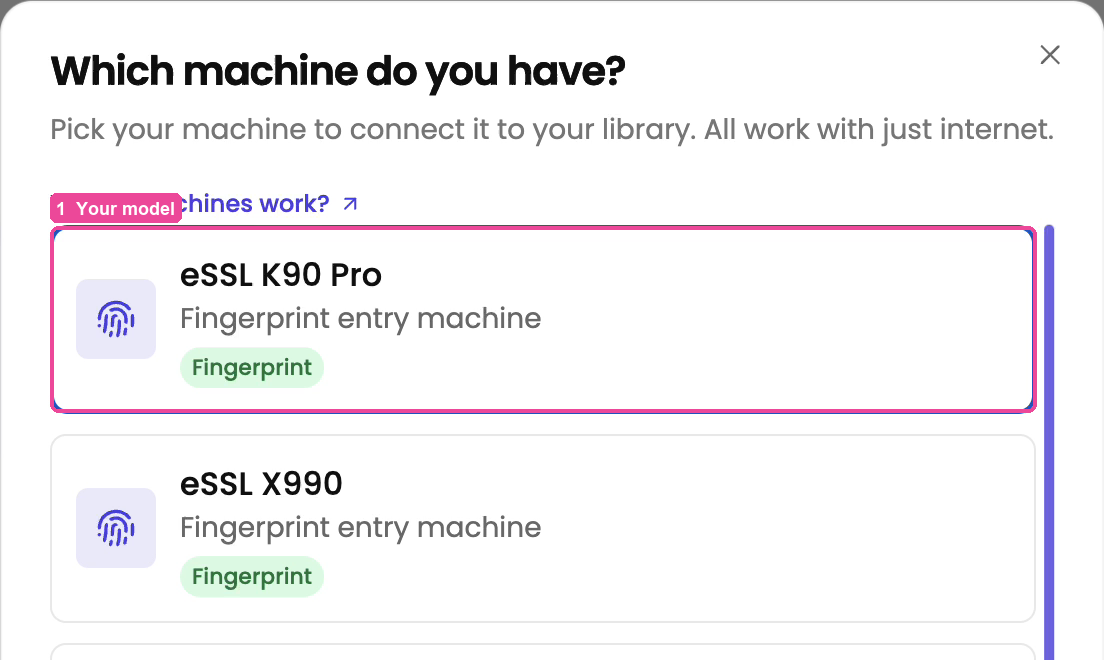
Your machine is not in the list? Tap Request your machine at the bottom and tell us the brand and model on WhatsApp.
-
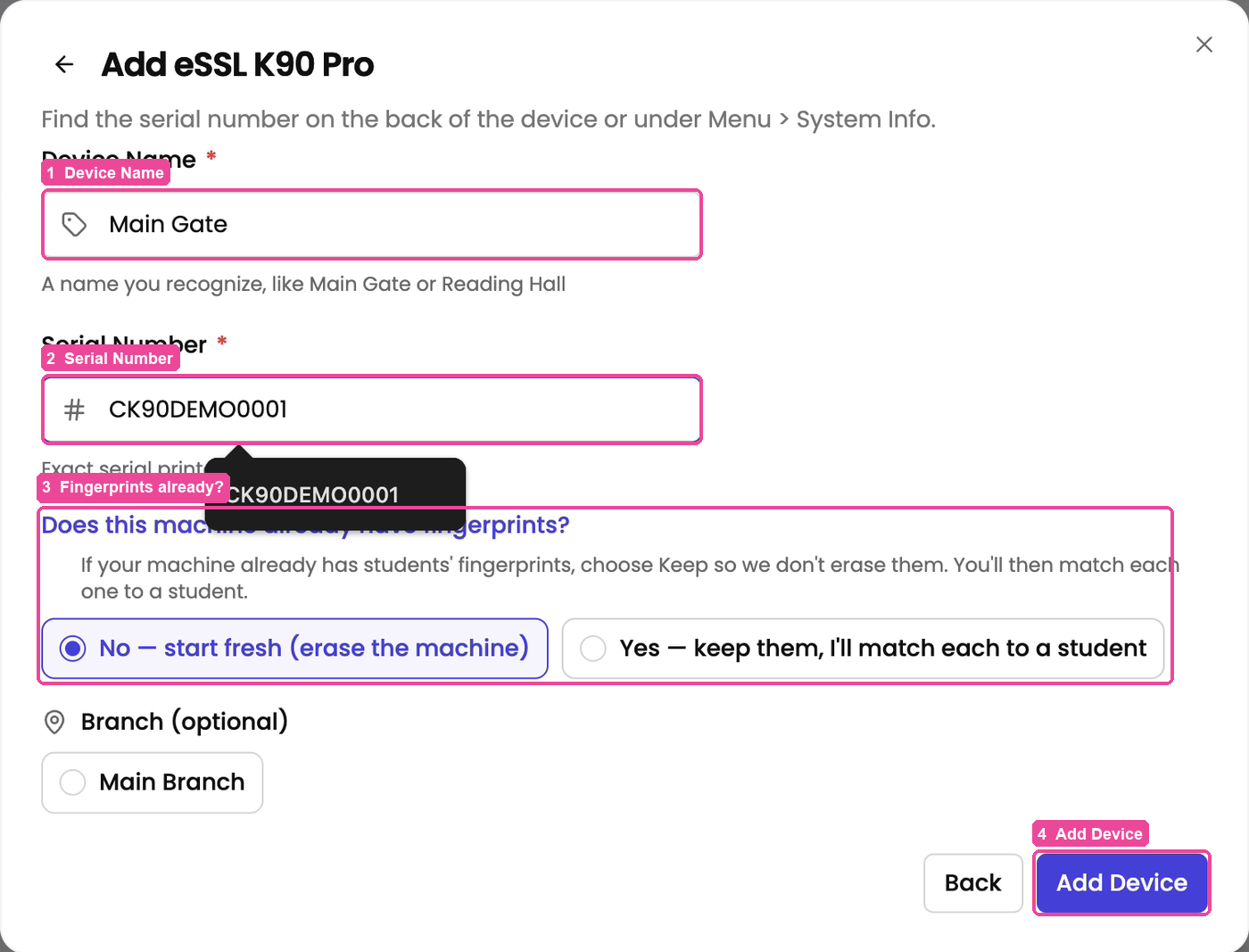
In Device Name, type a name you will recognise, like Main Gate or Reading Hall.
-
In Serial Number, type the serial exactly as printed on the machine.
-
Answer Does this machine already have fingerprints?
- New machine, or you do not need what is on it: choose No — start fresh (erase the machine).
- The machine already has your students' fingerprints from before: choose Yes — keep them, I'll match each to a student, so nothing is erased.
-
If you have more than one branch, pick the branch under Branch (optional). Then tap Add Device. You see Device added.
If you chose No — start fresh, students with an active plan in the machine's branch are usually put on the machine for you. Check Entry & Exit, then Students: anyone under Not on machine still needs Add to machine (see Add a student's fingerprint).
If you chose Yes — keep them, the machine's card later says the machine already had people in it. Tap Match existing users and pick the student for each person, so their old fingerprint keeps working.
Enter the server settings on the machine
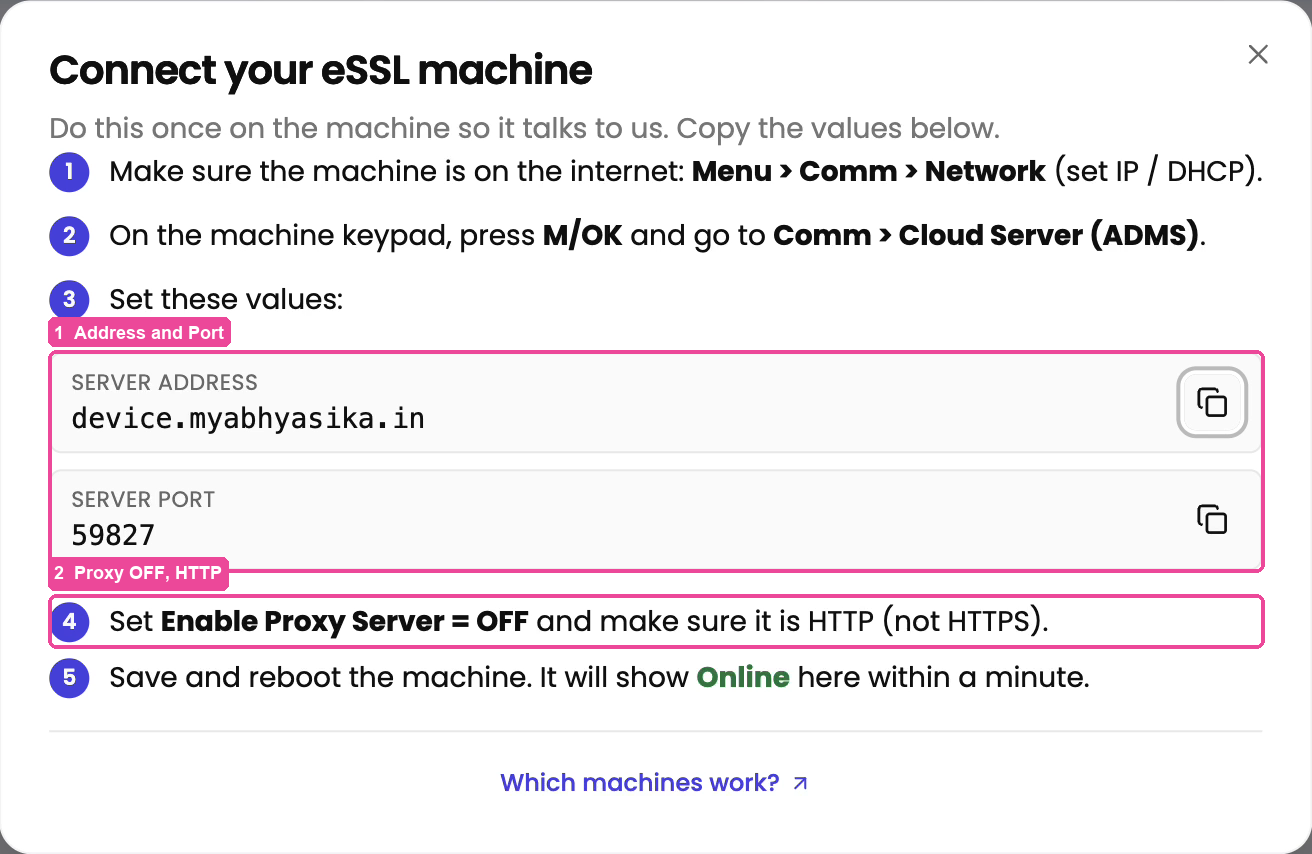
This is done once, on the machine's own keypad. Use the How to connect window on the machine's card: it shows the steps and has copy buttons for each value.
-
On the machine's card, tap How to connect. The window Connect your eSSL machine opens.
-
On the machine, make sure it is on the internet: Menu > Comm > Network (set IP / DHCP).
-
On the machine keypad, press M/OK and go to Comm > Cloud Server (ADMS).
-
Enter these values:
- Server Address:
device.myabhyasika.in(only this, without the port) - Server Port:
59827
- Server Address:
-
Set Enable Proxy Server = OFF and make sure it is HTTP, not HTTPS.
-
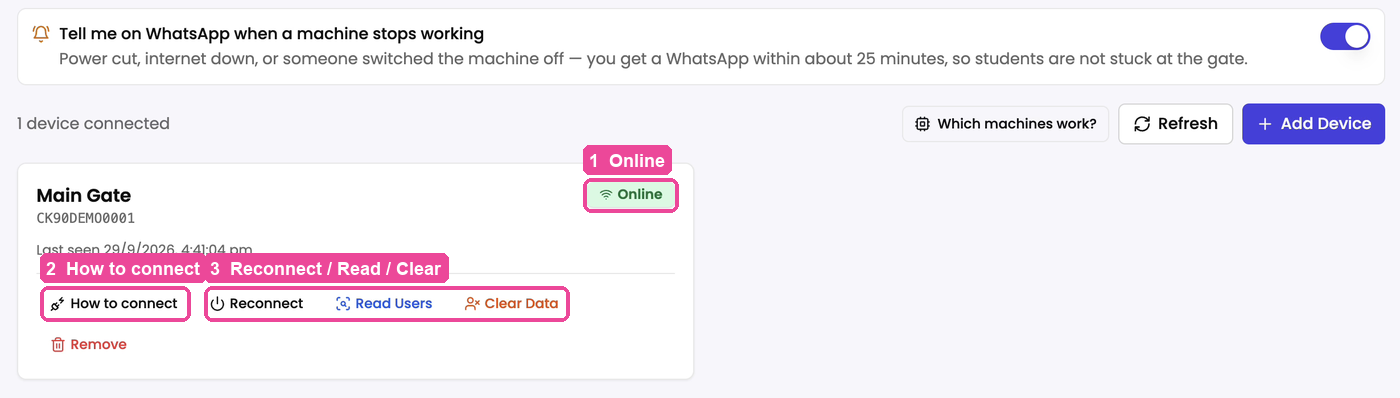
Save and restart the machine. Within a minute, the machine's card on the Devices tab shows Online in green. Tap Refresh if it still shows the old status.
Next, add your students' fingerprints: Add a student's fingerprint.
The buttons on the machine's card
These only work while the machine shows Online.
- Reconnect restarts the machine the next time it checks in with us.
- Read Users asks the machine to send us the list of people saved on it.
- Clear Data erases every fingerprint and user saved on the machine itself. The fingerprints saved in Abhyasika stay safe, but your active students must be put back on the machine afterwards. Use it only when the machine is full of old students and needs a fresh start. It asks you to confirm with Yes, Clear Device Data.
- Remove takes the machine out of your library. Students' fingerprints are kept, so a new machine gets them back without scanning again, but this machine's entry and exit history is deleted.
Tell me on WhatsApp when a machine stops working is a switch at the top of the Devices tab. It is on by default. If the power goes, the internet drops or someone switches the machine off, you get a WhatsApp within about 25 minutes. Turn it off only while you have unplugged the machine on purpose, for example while shifting it.
See who came in and went out
-
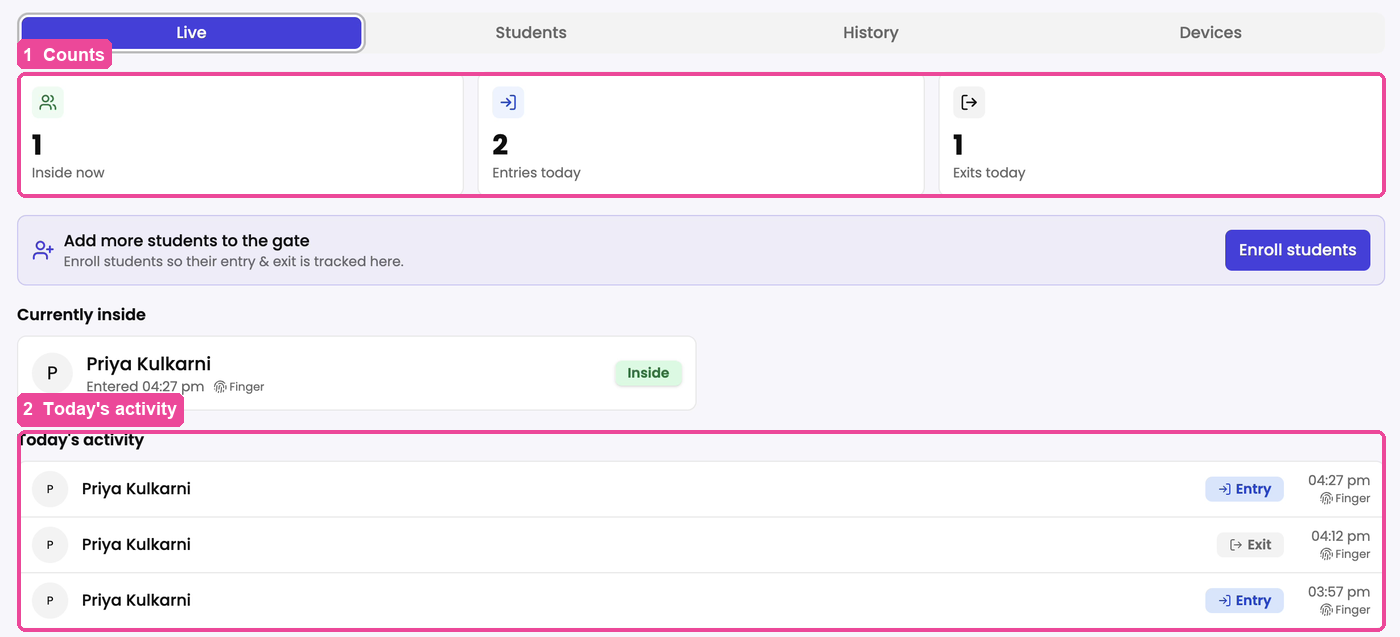
In Entry & Exit, tap the Live tab. It refreshes by itself.
- Inside now: students in the library at this moment.
- Entries today and Exits today: how many times the gate was used today.
- Currently inside lists each student inside and when they came in.
- Today's activity lists every entry and exit today, with the time.
-
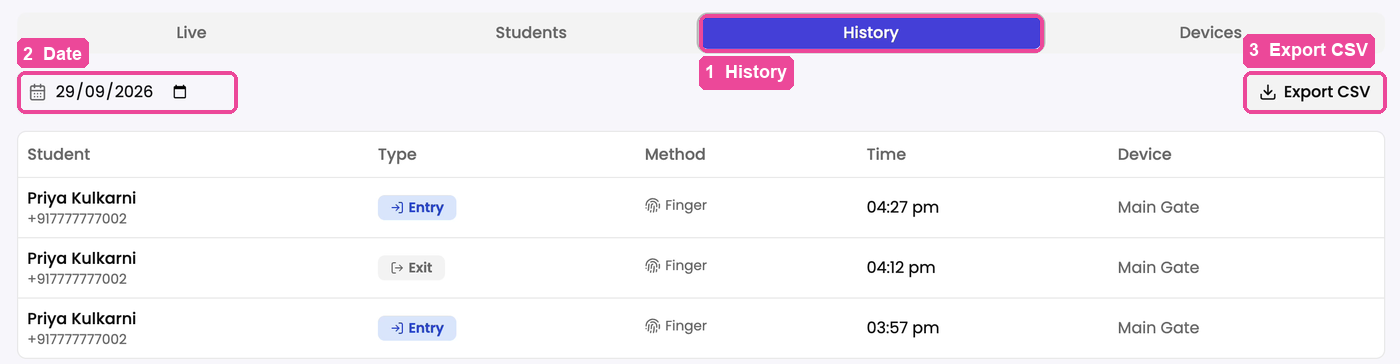
For an older day, tap the History tab and pick the date. The table shows each student, Entry or Exit, the method (finger or card), the time and the machine.
-
To keep a copy of that day, tap Export CSV. The file opens in Excel or Google Sheets.
If something stops you
- The card says Never connected or Offline, and the machine is new. The server settings have not reached us yet. Check steps 10 to 14 again: Server Address
device.myabhyasika.in, Server Port59827, Proxy OFF, HTTP (not HTTPS). Then restart the machine. - It was working and now says Offline. Something at your gate changed, not the settings. Check the internet cable at the machine and at the router, switch the machine off and on, and restart the router. Internet on your phone does not mean the machine has it: the machine uses its own cable.
- Reconnect, Read Users or Clear Data are greyed out. They need the machine to be Online first.
- Still not Online? Tap Support in the sidebar (or press Ctrl+Shift+G, Cmd+Shift+G on a Mac) and tell the assistant your machine will not come online. It walks you through the checks and files a ticket for our team if needed. Most problems are fixed within 24 hours, 3 days at most. See Get help from support.