
Design your floor map
How to draw a room's seat layout in the floor map editor: place and name seats, mark washrooms, doors and water, rename or renumber seats, and save, from setup or from Settings, Branches, Edit Layout.
Steps checked on 29 September 2026
Draw your hall's seats exactly as they sit in real life, name them, and mark washrooms, doors and water, so students pick a real seat when they book.
Open the floor map editor
There are two ways in.
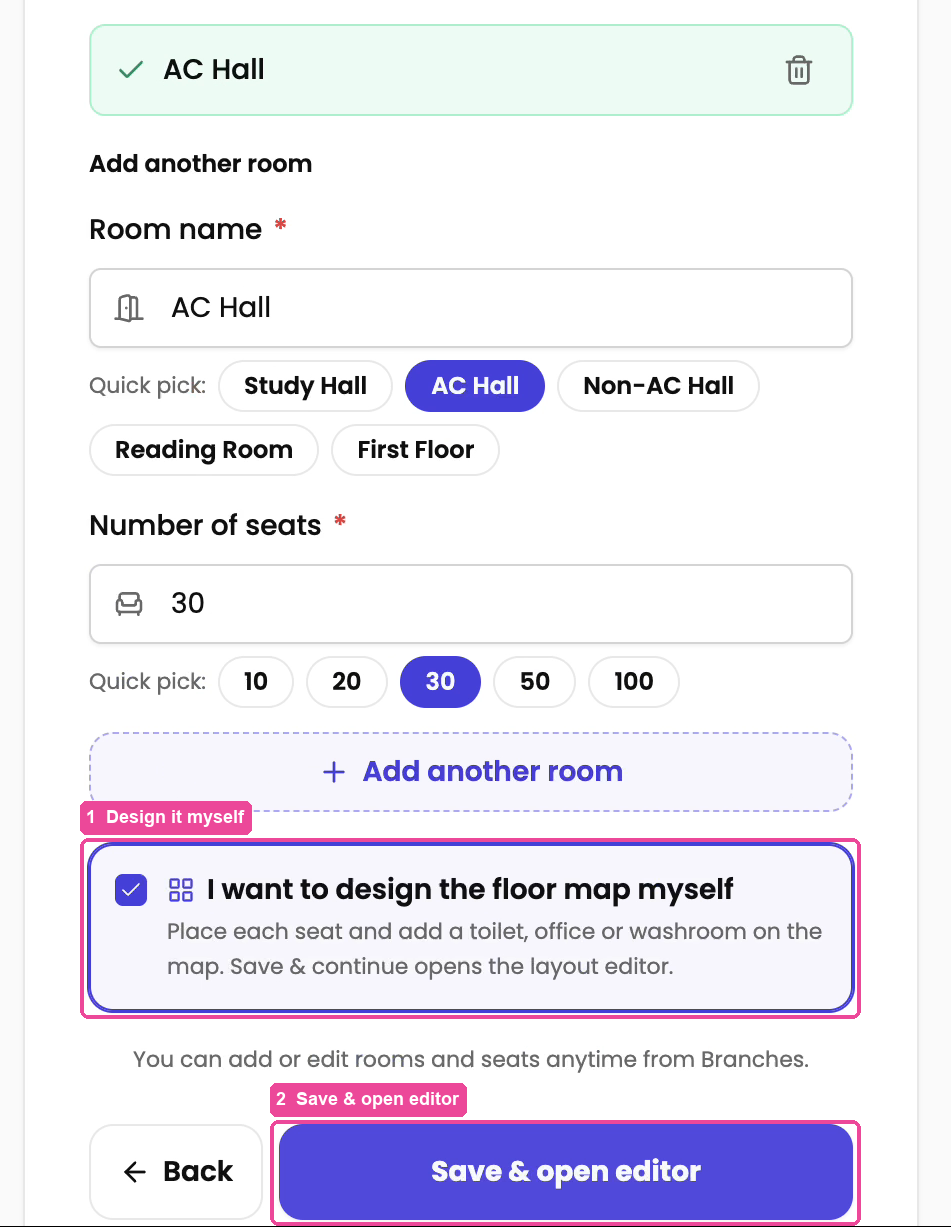
During setup (Step 2, Seats):
- Type the Room name and Number of seats.
- Tick I want to design the floor map myself.
- Tap Save & open editor.
Any time later, from Settings:
- In the sidebar, tap Settings, then the Branches card.
- On your branch, tap Manage rooms.
- Pick the room at the top, then tap Edit Layout.
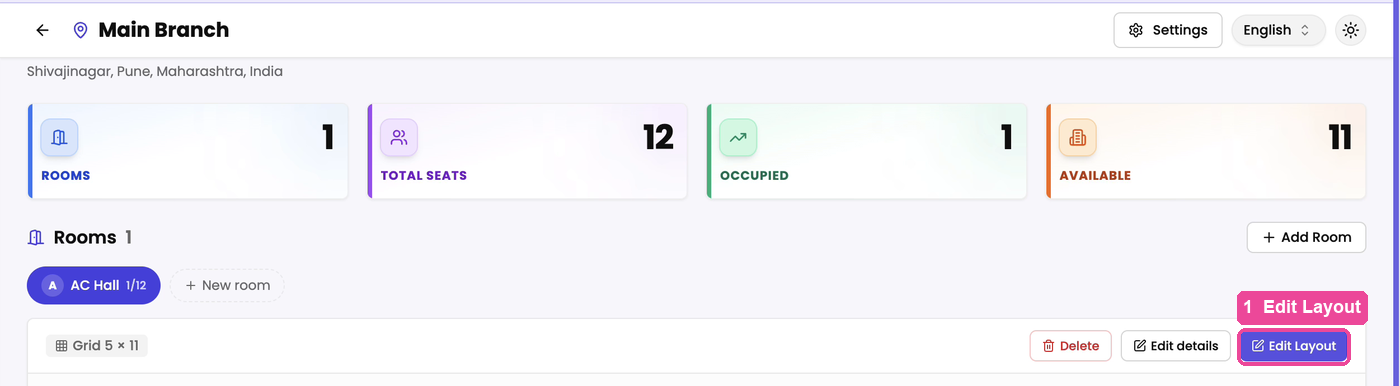
If the room has no seats yet, you also see Upload sketch (AI) and Build manually. Build manually opens the same editor.
The editor opens with the title Edit Layout · your room name.
Place your seats
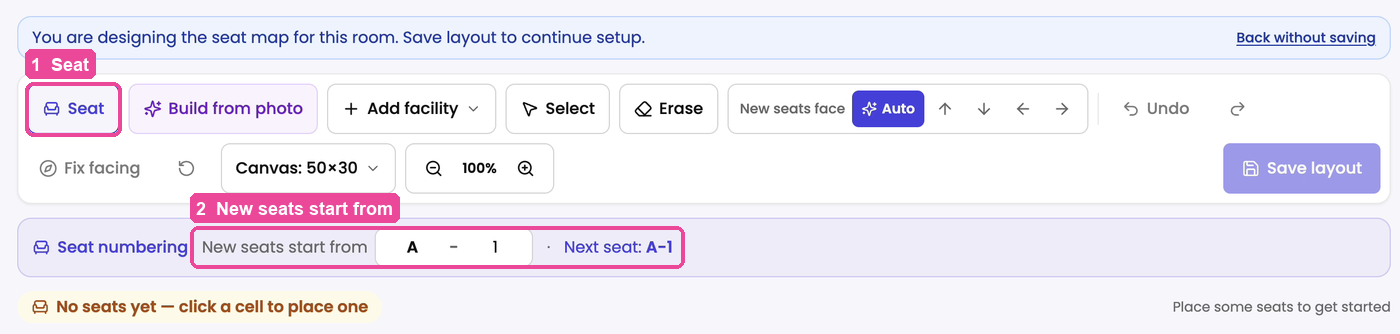
- Make sure Seat is selected in the toolbar. It is selected when the editor opens.
- Under Seat numbering, set where the names start in New seats start from, for example A and 1. Seats are named in the order you place them: A-1, A-2, A-3 and so on.
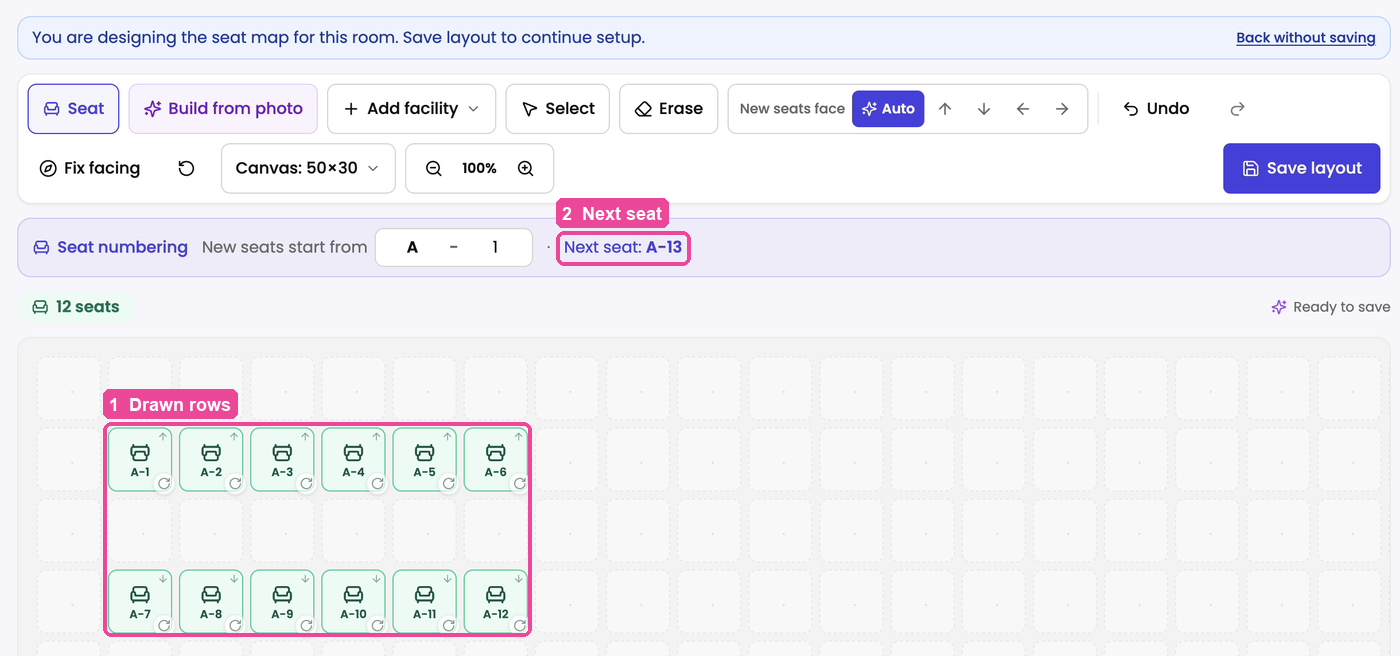
- Tap an empty square to place one seat. To place a whole row, drag across the squares.
- Leave an empty row of squares between rows of seats. That empty row becomes the walking path.
- Next seat always shows the name the next seat will get, for example A-13 after 12 seats.
Placed a seat by mistake? Tap Undo, or tap Erase and then the seat. Tap Seat again when you are done erasing.
Mark washrooms, doors and water
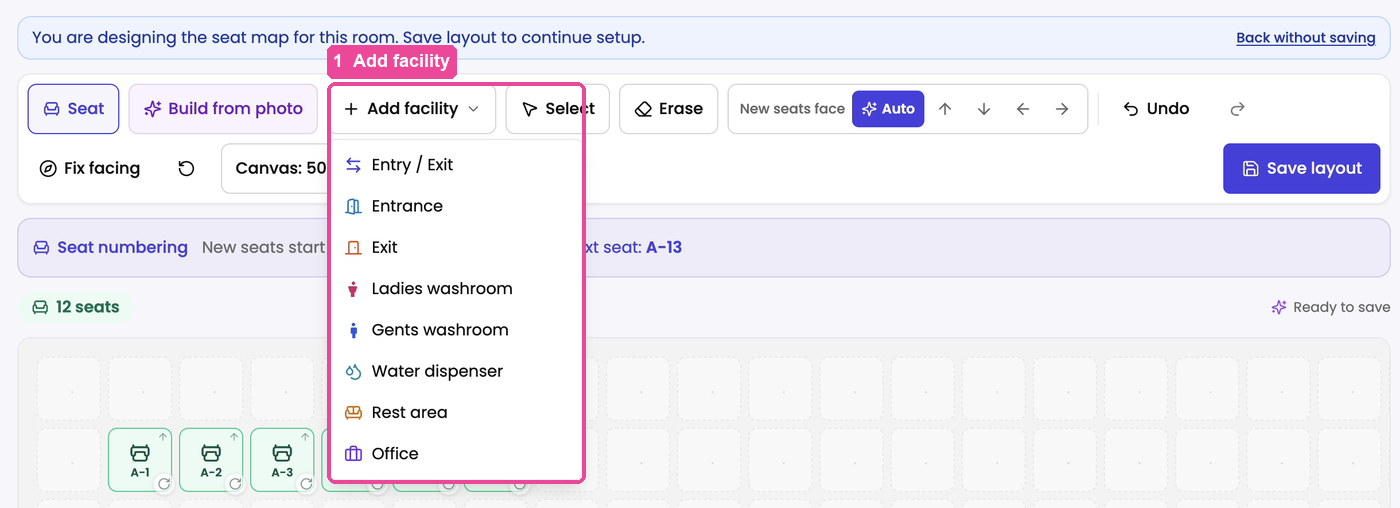
- Tap Add facility.
- Pick what to place: Entry / Exit, Entrance, Exit, Ladies washroom, Gents washroom, Water dispenser, Rest area or Office.
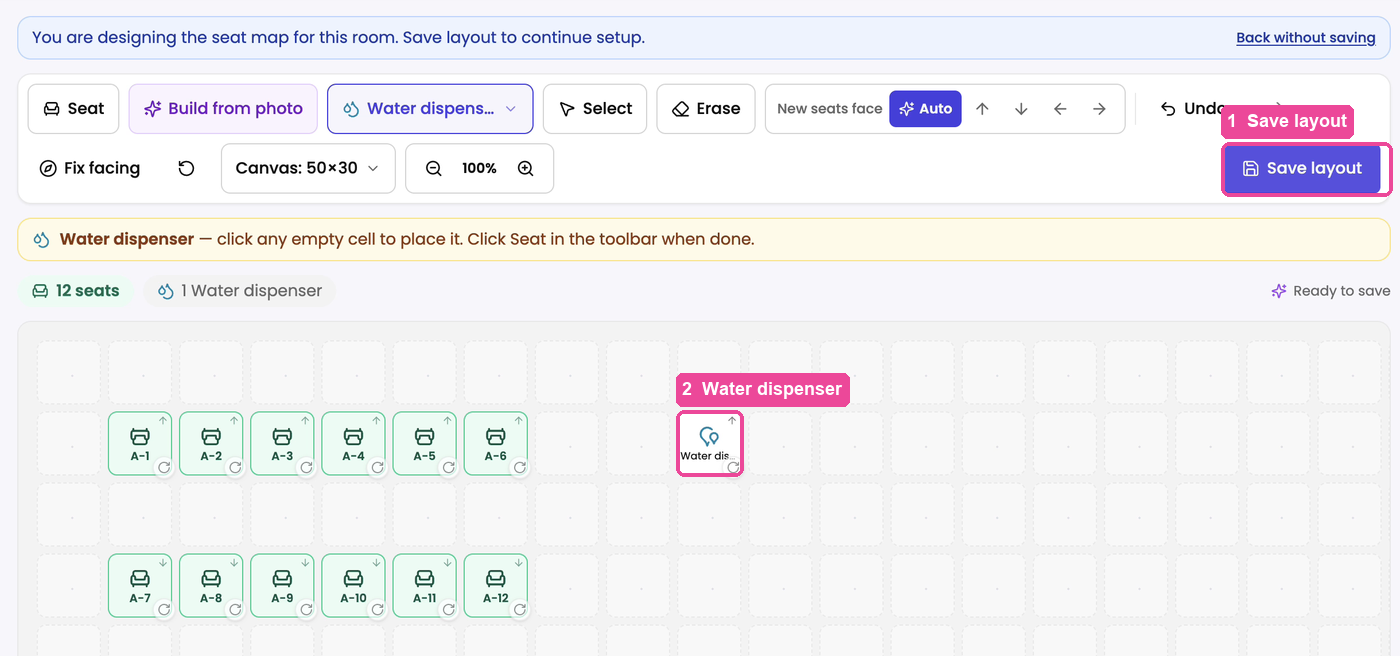
- Tap an empty square to place it.
- Tap Seat in the toolbar when you are done.
Save
Tap Save layout. Nothing is saved until you do. If you came from setup, you go back to the next setup step.
To leave without saving, tap Back without saving.
Have a drawing of your hall?
Tap Build from photo in the toolbar and upload a clear photo of your hand-drawn layout, with each seat numbered and doors and washrooms marked. The seats are placed for you. Check them, then tap Save layout.
Don't want to do it yourself? On a room that has no seats yet, tap WhatsApp us and send a photo of your sketch. Our team builds the layout for you.
Rename, renumber or remove seats
- Open the editor and tap Select.
- Rename one seat: tap it and type the new name in Label.
- Renumber many seats: select them (drag across a row to select many) and tap Renumber.... Choose the Starting letter (e.g. A, B), Start number and Counting direction, then tap Renumber. If a student sits on one of those seats, the button says Yes, renumber.
- Remove seats: select them, tap Delete selected, then tap Delete.
- Tap Save layout.
Renaming a seat does not move anyone, and old receipts keep the old seat name.
Make the hall bigger or smaller
Tap Canvas in the toolbar and change Rows and Columns. This only changes the size of the drawing area. It does not add seats. Making it smaller removes any seats in the rows or columns you take away.
If something stops you
- Save layout is greyed out: place at least one seat first.
- "This seat has an active student — can't remove it": a student is booked on that seat. Move the student to another seat first.
- "Another seat already uses that label": two seats cannot have the same name. Pick a different one.
Back to: Set up branches, rooms, seats and plans.