
Add a student's fingerprint
Save a student's fingerprint on the entry machine: Capture finger from Entry & Exit > Students, ask students on WhatsApp with Ask to add thumb, or let the student add it themself from their profile with a code.
Steps checked on 29 September 2026
This guide saves a student's fingerprint on your entry machine, so they can come in and go out with one touch.
There are two ways. You can do it yourself from the Students tab while the student stands at the machine, or the student can do it on their own from their phone. You can also send students a WhatsApp asking them to add it.
A fingerprint is saved once. Renewing a plan, pausing entry or changing a room never asks the student to scan it again.
Before you start
- Your machine is added and shows Online. If not, see Add and connect your entry machine.
- The student has an active plan in your library.
Way 1: You add it from the Students tab
-
In the sidebar, tap Entry & Exit, then the Students tab.
-
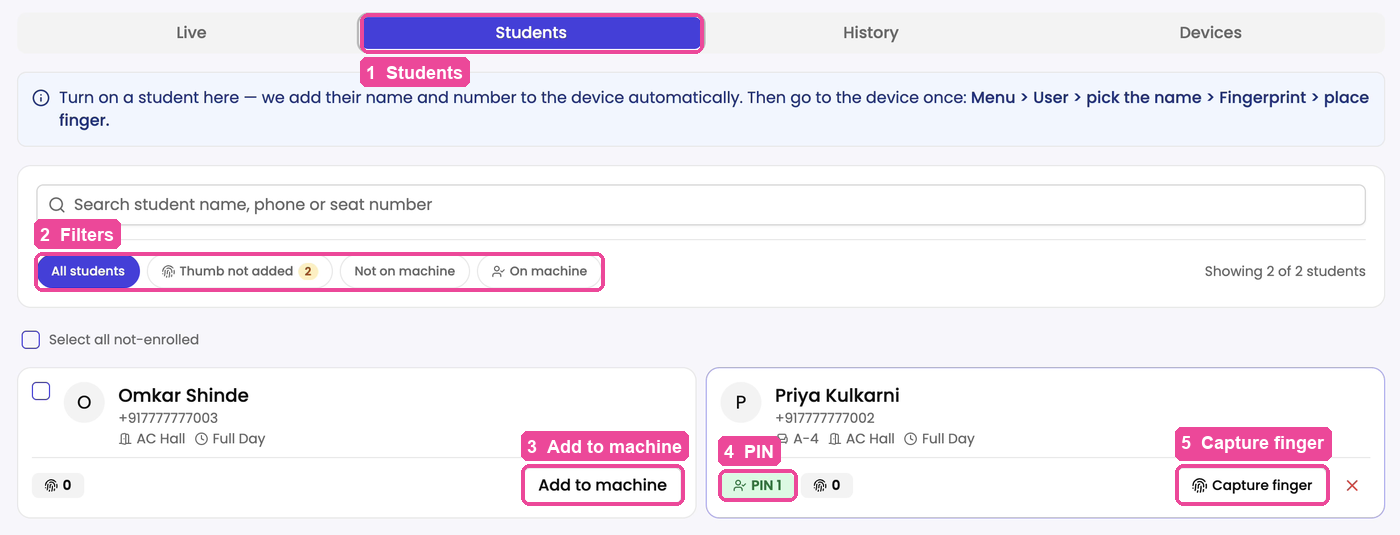
Use the filters to find who still needs a fingerprint:
- All students: everyone with an active plan.
- Thumb not added: students with no fingerprint yet. The number beside it tells you how many.
- Not on machine: students whose name is not on the machine yet.
- On machine: students already on the machine.
You can also type a name, phone number or seat number in the search box.
-
If the student's card shows Add to machine, tap it. This puts their name and number on the machine. To do many at once, tick their boxes (or Select all not-enrolled) and tap Add to machine in the bar that appears.
-
Once they are on the machine, their card shows a green PIN badge, for example PIN 1. That is their number on the machine. The fingerprint badge next to it shows how many fingers are saved.
-
Ask the student to stand at the machine. Then tap Capture finger on their card. If their room has more than one machine, pick the one they are standing at.
-
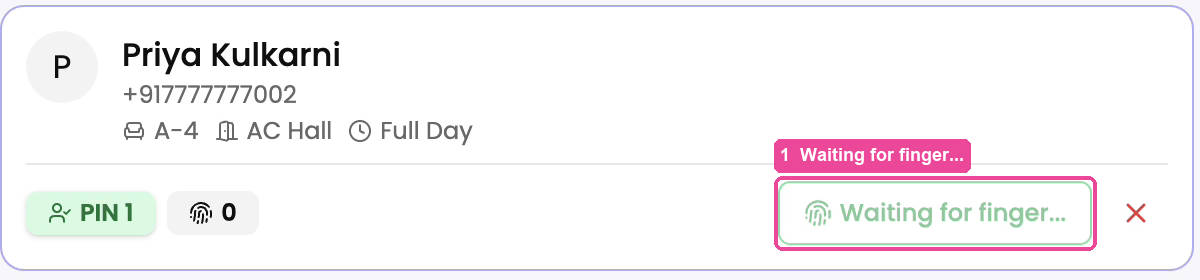
The button changes to Waiting for finger... and the machine asks for a finger. The student places the same finger on the machine 3 times.
-
The machine waits about 30 seconds. When the finger is saved, the count on the fingerprint badge goes up. If the student was too slow, tap Capture finger again.
You can also do it on the machine itself: Menu > User, pick the student's name, then Fingerprint, and place the finger.
Way 2: Ask students on WhatsApp
Students who never open the app will not see the in-app prompt, so send them a message.
-
On the Students tab, tap Thumb not added, tick the students, and tap Ask to add thumb.
You can do the same from the member list on your dashboard: tap View All Members, tick the students, tap Ask to add thumb, then Send Now.
-
Each student gets a WhatsApp with an Add my thumb button. The message tells them to stand at the machine first. One tap signs them in, with no password, and opens the fingerprint screen described below.
Anyone who has already added their thumb is skipped, so no message is wasted. Each message is paid from your WhatsApp balance like your other messages.
Way 3: The student adds it themself
This is what the student sees on their own phone or computer.
-
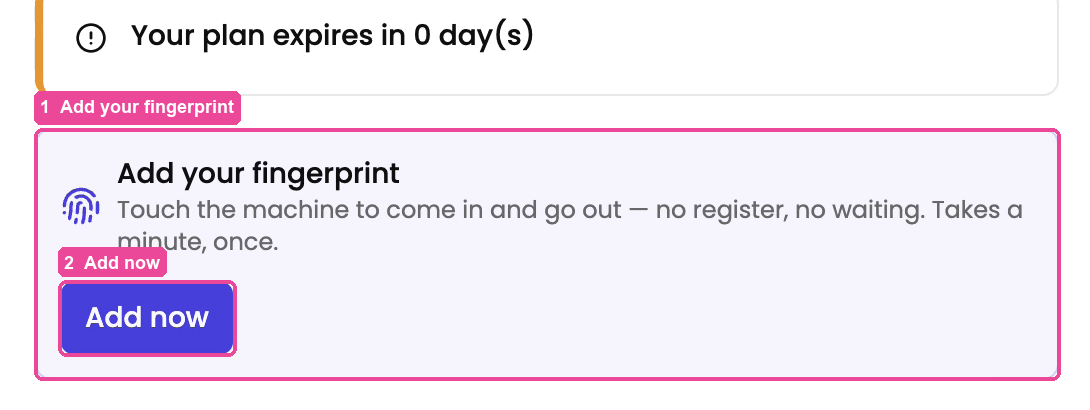
The student opens their profile: their name at the top right, then Profile (on a phone, Profile in the bottom bar). While their fingerprint is not saved, a card Add your fingerprint appears there, and on My Bookings and My Study Time. They tap Add now.
-
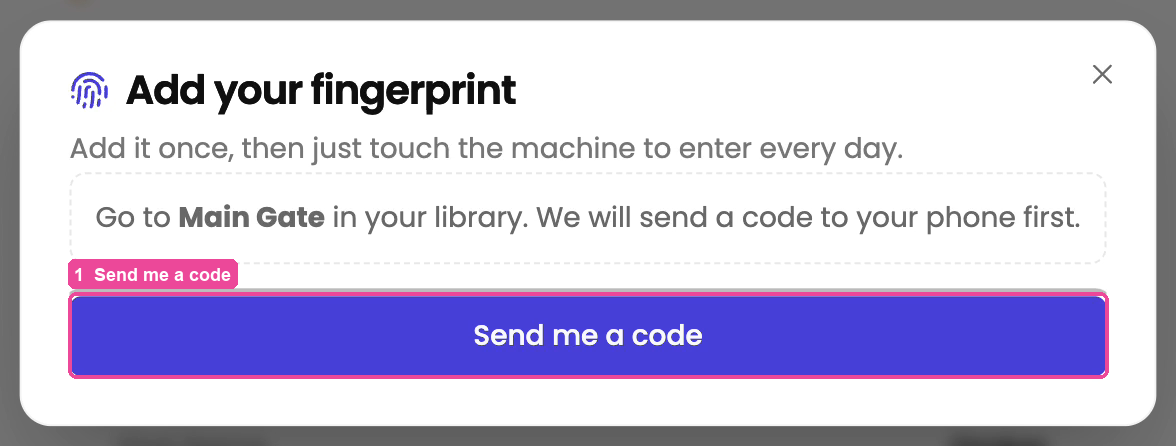
The window tells them which machine to go to, for example Main Gate. If your library has more than one machine, they first pick the one they are standing at under Which machine are you at?. Standing at the machine, they tap Send me a code.
-
A code arrives on their phone on WhatsApp (or by SMS if WhatsApp does not arrive). They type it under Enter the code sent to your phone and tap Confirm. The code makes sure nobody else puts their finger on this student's name.
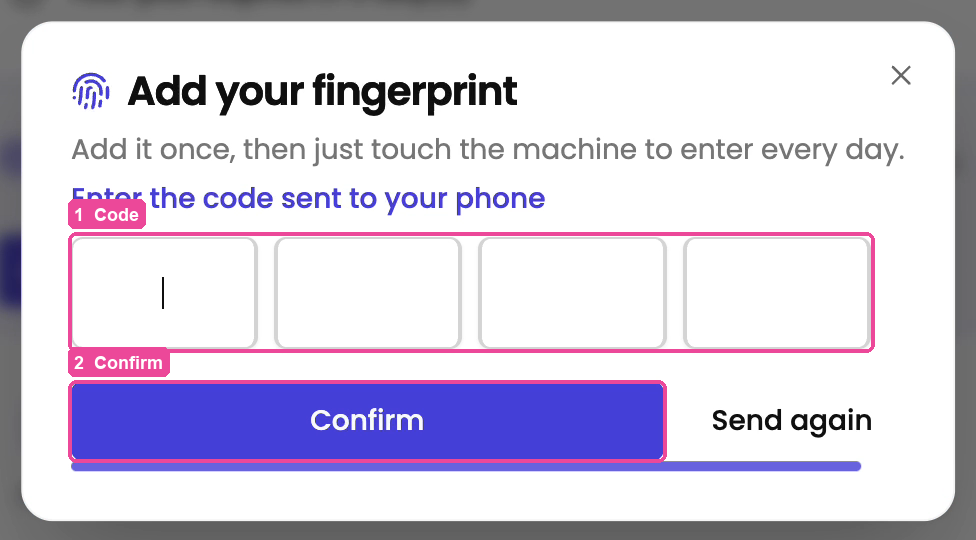
-
The screen says Now go to Main Gate: wait for the machine to ask for the finger, then place the same finger 3 times. The screen shows Waiting for your finger… meanwhile.
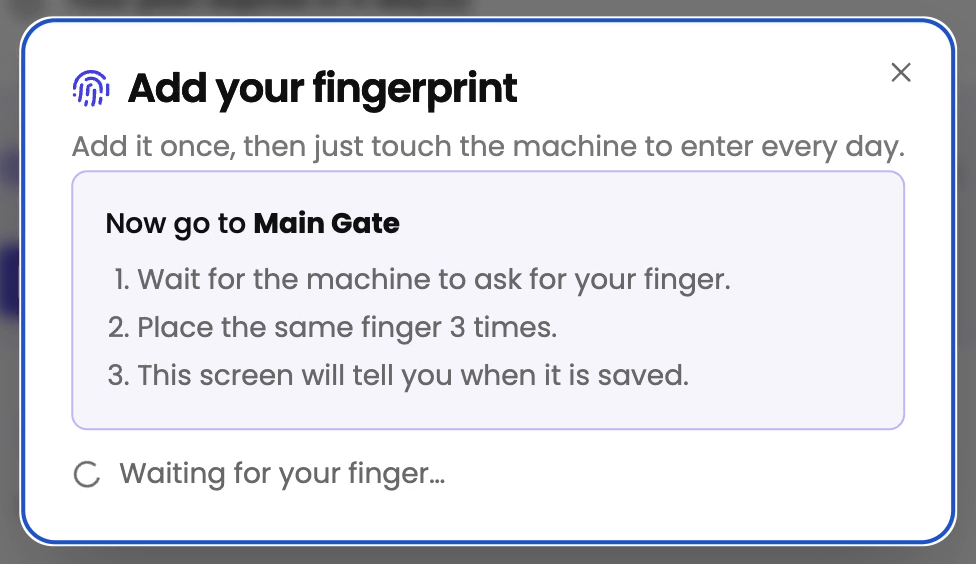
-
When it works, the screen shows Fingerprint saved. The student taps Done. On your member list, their tag changes to Thumb added.
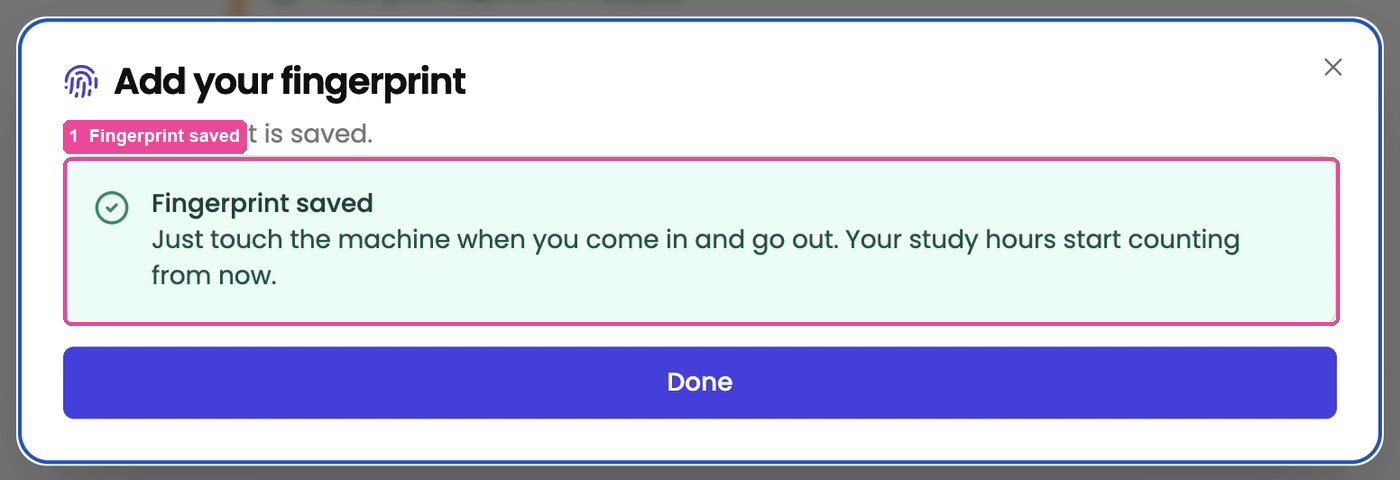
If something stops you
- "Could not start capture — check the student is on their room machine". The student is not on the machine that covers their room. Tap Add to machine on their card first, and make sure the machine is Online.
- The student's code does not come. Tap Send again. A wrong or old code shows "Wrong or expired code. Send a new one and try again."
- The student does not see Add your fingerprint. It only shows when your library has a machine and the student has no fingerprint saved yet.
- A student tapped the WhatsApp button from home. Nothing happens, because the machine asks for the finger right then. Ask them to stand at the machine and try again. The link in the message works for 72 hours.