
Pause or allow a student's entry
Pause or allow one student's fingerprint entry from the member list without deleting the fingerprint, and turn on Stop entry when fees are overdue so the gate stops unpaid students by itself.
Steps checked on 29 September 2026
This guide stops a student's fingerprint from opening the gate for a while, lets them in again, and sets the gate to stop students whose fees are overdue by itself.
Pausing never deletes the fingerprint. It only stops entry. When you allow the student again, the same finger works at once. Nobody scans again.
Before you start
- Your machine is connected and the student's fingerprint is on it. See Add and connect your entry machine and Add a student's fingerprint.
Pause or allow one student
-
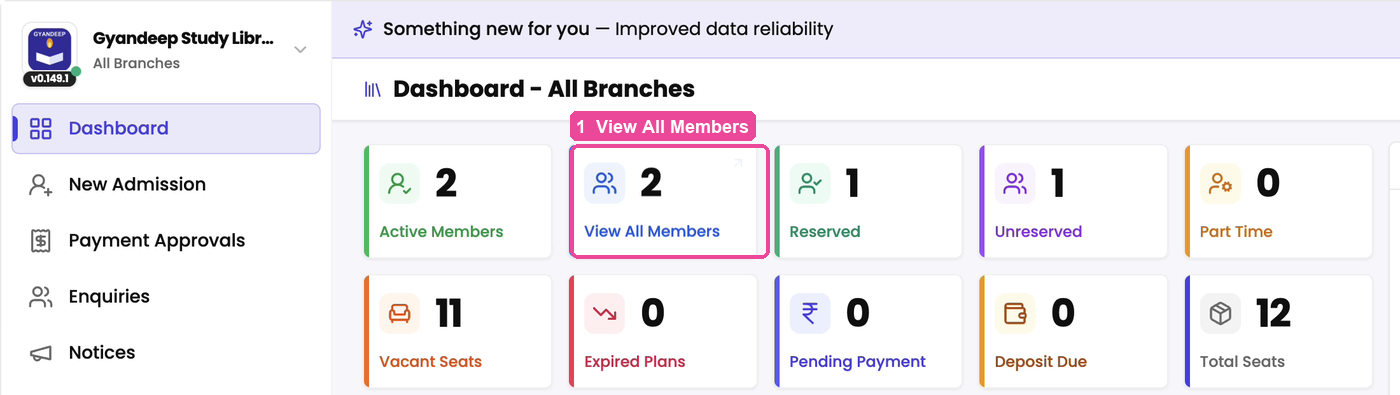
In the sidebar, tap Dashboard, then the View All Members box at the top.
-
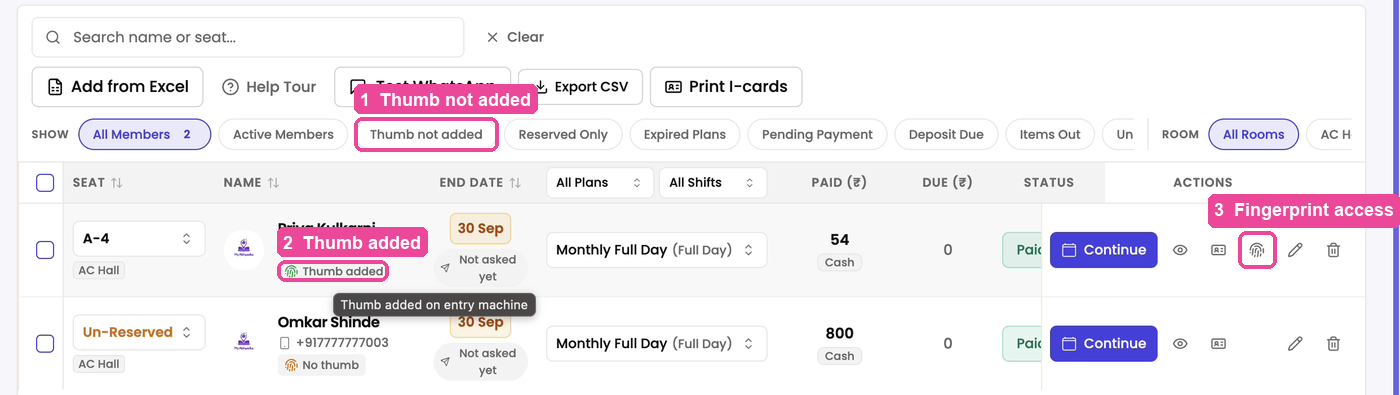
Find the student. Under each name, a small tag tells you if their finger is on the machine: Thumb added or No thumb. To see only those still missing, tap Thumb not added in the row of filters above the list.
-
In the student's row, under Actions, tap the fingerprint button (it says Fingerprint access when you point at it). On a phone, open the row's actions menu and tap Fingerprint access.
-
The Fingerprint access window lists each machine the student uses, with Can enter under it. Tap Pause next to the machine. It now says Cannot enter right now, and the machine stops opening for this student.
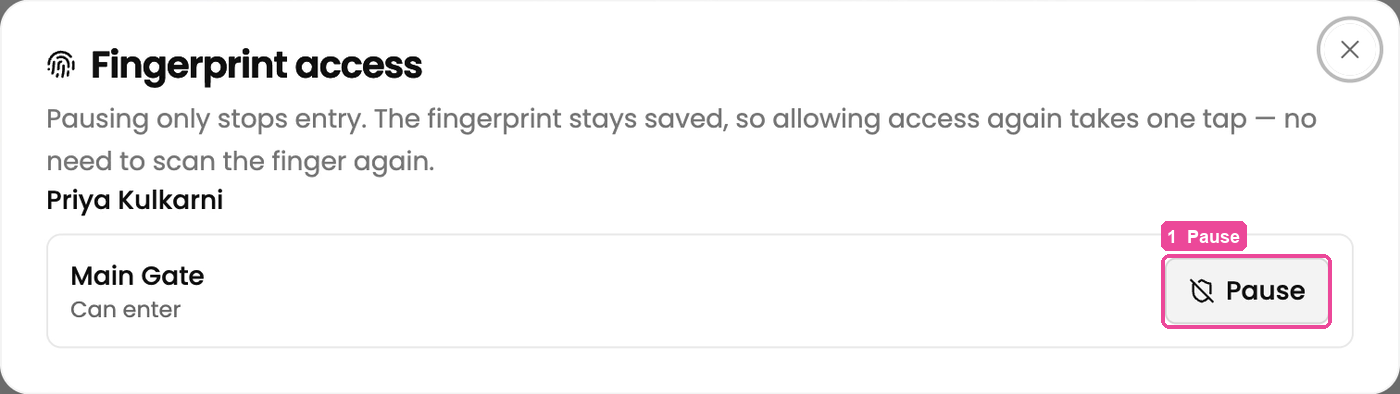
If the student uses more than one machine, you can pause just one, or tap Pause on all machines.
-
To let them in again, open the same window and tap Allow (or Allow on all machines). Entry works again straight away with the same finger.
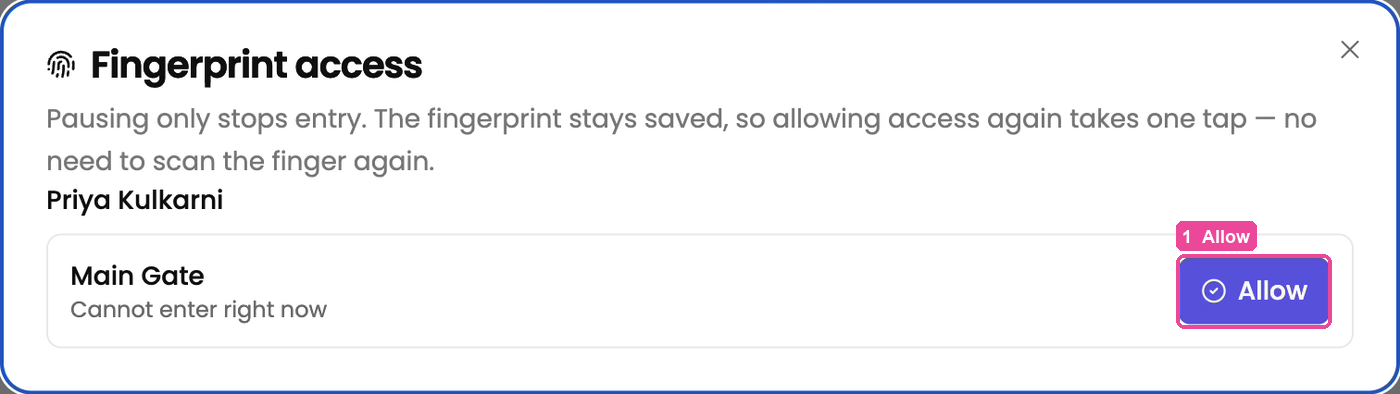
While a student is paused, the fingerprint button in their row turns red, and on a phone the menu item reads Fingerprint paused.
Renewing a plan allows entry again, even for a student you paused by hand. When you continue a student's plan, or they pay online, every pause on them is lifted. If you paused someone for another reason, pause them again after renewing.
Stop entry by itself when fees are overdue
With this on, you do not have to pause anyone by hand for late fees.
-
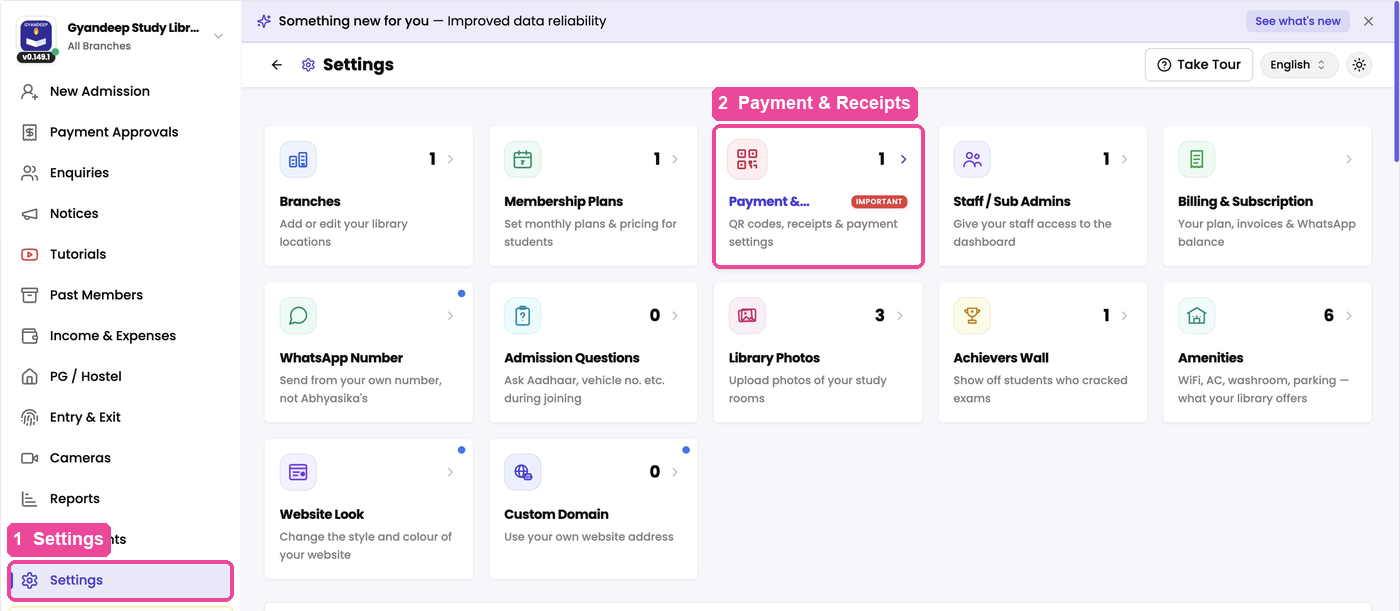
In the sidebar, tap Settings, then the Payment & Receipts card.
-
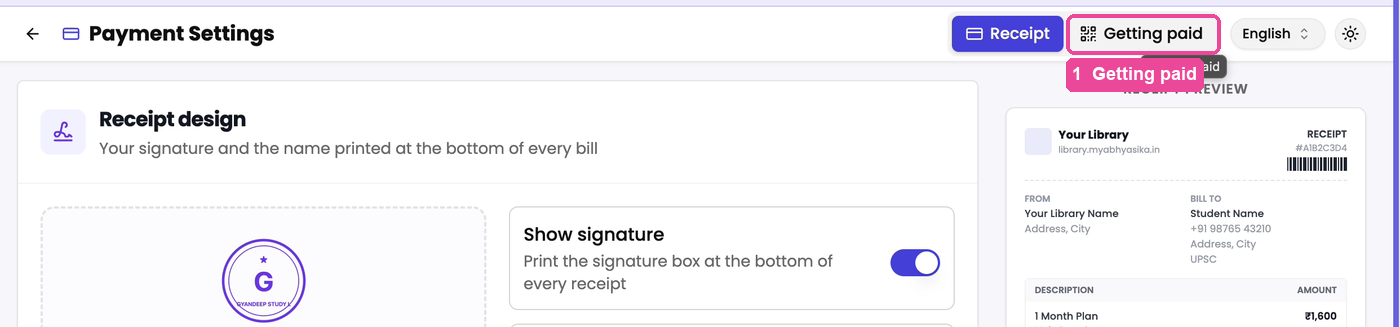
At the top of Payment Settings, tap the Getting paid tab. On a phone, it is the tab with the QR code picture.
-
Scroll down to the Entry machine card and turn on Stop entry when fees are overdue.

-
If some students are already overdue, the app first asks how many it will stop, for example Stop 3 student(s) now? Tap Yes, stop them to go ahead, or Cancel to leave it off.
What happens after that:
- A student's finger stops working the day their plan ends. The check runs every night, just after midnight.
- As soon as they pay (you continue the plan, or they pay online), entry starts again by itself. Their fingerprint stays saved, so they never scan again.
- Turning the switch off lets everyone this setting stopped enter again. Students you paused by hand stay paused.
If something stops you
- No fingerprint button in a student's row. The student is not on any entry machine yet. Add them from Entry & Exit, then Students, first.
- "This student is not on any entry machine yet" in the window means the same thing.
- No Entry machine card on the Getting paid tab. It only appears once your library has a machine added.