
Sign out of other devices
Gave your login to someone or lost a phone? See every device signed in to your account under Settings → Signed-in devices, sign one out, or sign out of all other devices and choose whether this one stays signed in.
Steps checked on 15 November 2026
If you gave your login to a friend or staff member, or lost a phone, you can end that login from your own device. Nothing else changes: your library, students and data stay as they are.
Open your devices
- In the sidebar, tap Settings, then the Signed-in devices card. You can also tap your name at the bottom of the sidebar and choose Signed-in devices.
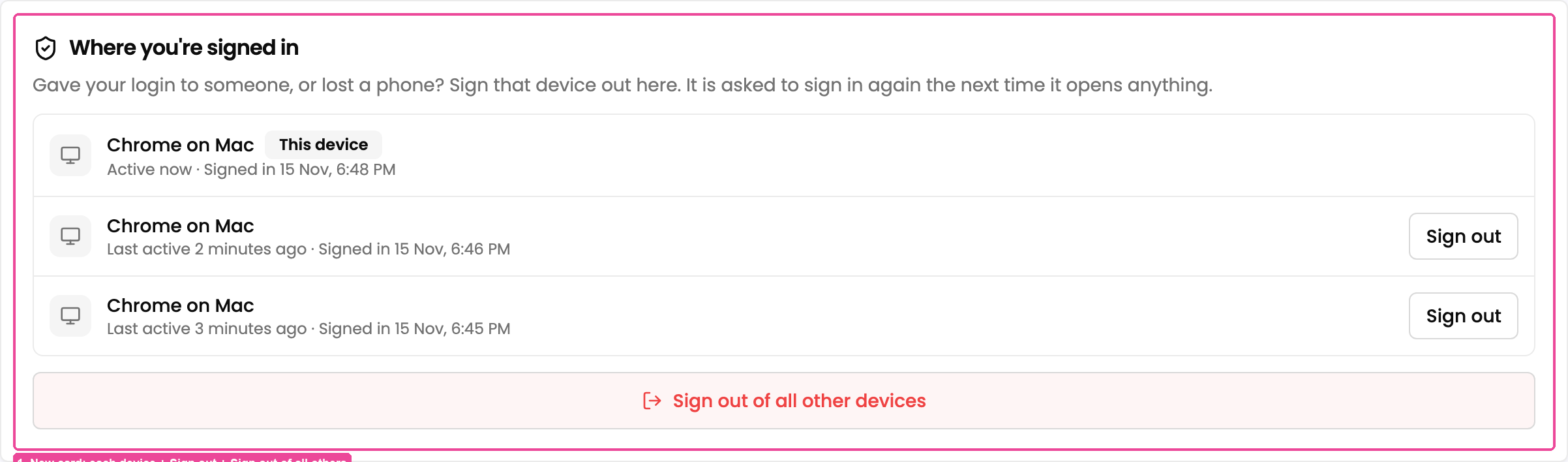
- The Where you're signed in card lists every phone, computer and Abhyasika app signed in to your account, such as Chrome on Windows or Abhyasika app on Android. The one you are using says This device.
- Each row shows when it was last active and when it signed in, so you can tell two "Chrome on Mac" rows apart.
Sign out one device
Tap Sign out next to the device you want to end. It disappears from the list. That device is asked to sign in again the next time it opens or taps anything, even if a tab was left open.
You cannot sign out This device here; use Sign out in your account menu for that.
Sign out of all other devices
- Tap Sign out of all other devices.
- Choose one:
- Sign out others, keep me here: every other device is signed out and you stay signed in.
- Sign out here too: every device is signed out, including this one, and you go to the sign-in page.
- Tap Cancel to change nothing.
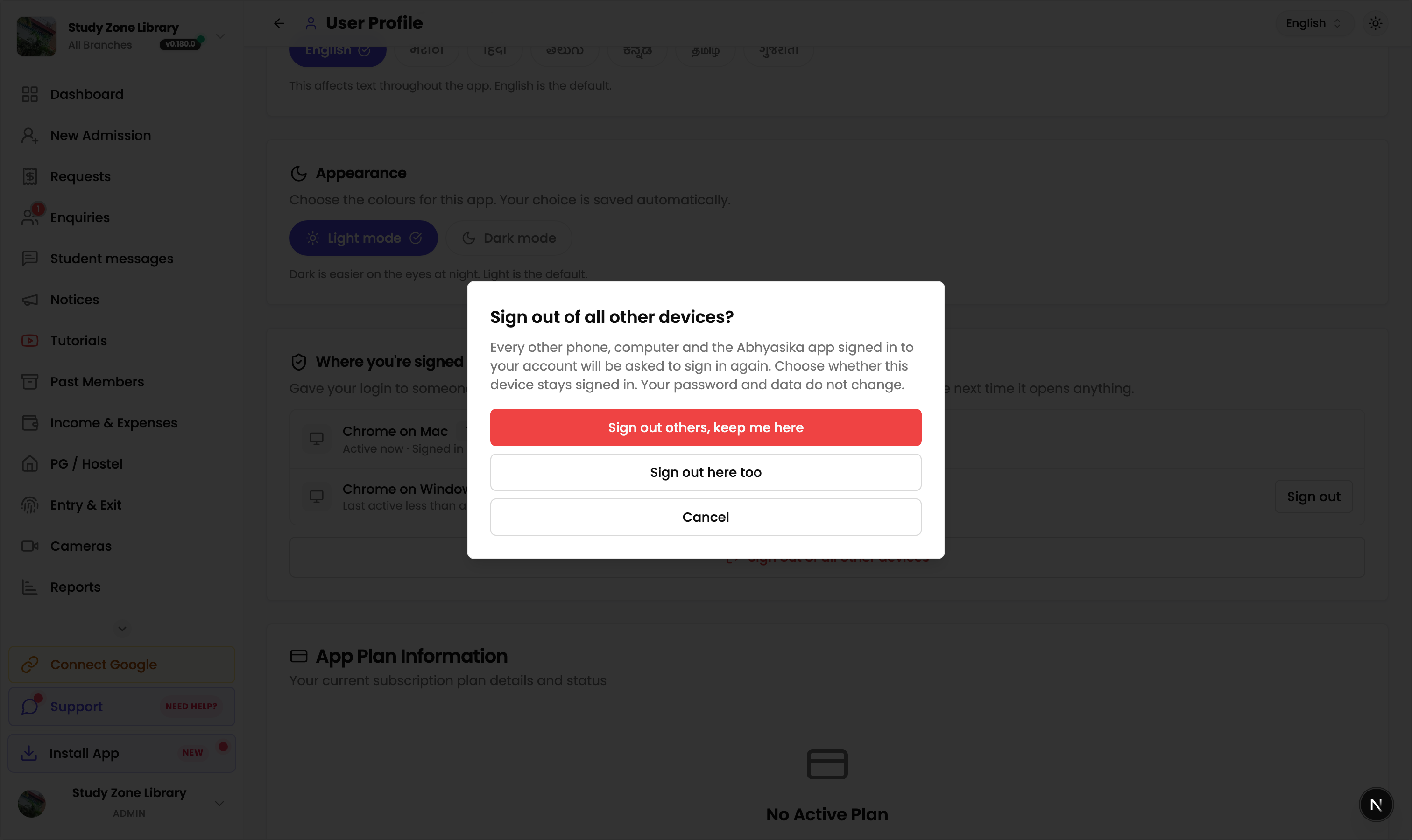
This also signs out older logins that are not in the list yet, such as a device that has not opened anything for a while.
Good to know
- A person who still has your phone or can get your verification code can sign in again. Keep your phone with you.
- Students see the same card on their Profile page.